

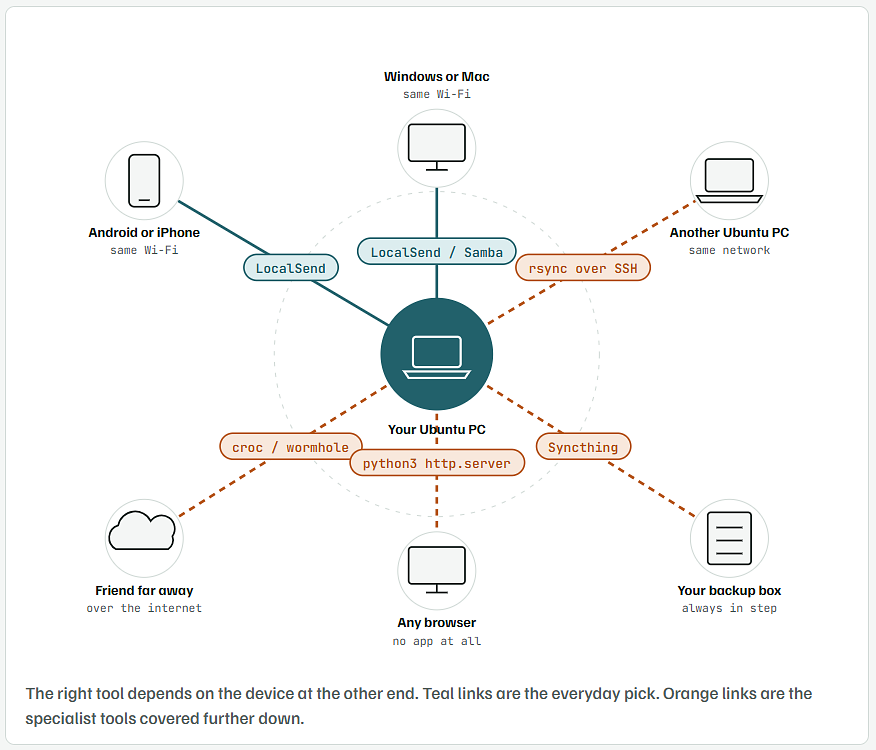
The best file sharer for most Ubuntu users is LocalSend. It sends files to Android, iPhone, Windows, Mac and other Linux machines on the same Wi-Fi. It needs no account and no internet connection, and the transfer is encrypted. For anything LocalSend can't do, there is a free terminal tool, and each one is covered below with the exact commands.
Why LocalSend Is the Best Pick for Most People
- Works on every common device. There are apps for Windows, macOS, Linux, Android and iOS, so one tool covers the whole house.
- No account and no cloud. Files go straight from one device to the other over your own network. The project says it needs no internet connection or third-party servers.
- Encrypted by default. It sends over HTTPS, and each device makes its own certificate when it starts.
- One port to open. It uses port 53317 for both TCP and UDP.
- Free and open source. The code is public on GitHub.
The one limit: both devices have to be on the same local network. To send to someone in another city, jump to croc and magic-wormhole below.
Install LocalSend on Ubuntu From the Terminal
Pick one of these two methods. Both are official listings from the LocalSend project.
Option A: Flatpak From Flathub
sudo apt install flatpak
flatpak remote-add --if-not-exists flathub https://dl.flathub.org/repo/flathub.flatpakrepo
flatpak install flathub org.localsend.localsend_app
- If this is your first Flatpak app, log out and back in once so it shows in the app menu.
Option B: Snap
sudo snap install localsend
Open the Port If Your Firewall Is On
sudo ufw status
sudo ufw allow 53317
- If
ufw statussays inactive, you can skip the second line. - On a fresh Ubuntu install, the firewall is off by default.
Send Your First File
- Install LocalSend on the other device from its app store, or from localsend.org.
- Open LocalSend on both devices, connected to the same Wi-Fi.
- On Ubuntu, go to the Send tab and pick a file, folder or text.
- Tap the other device when it appears in the Nearby devices list.
- Accept on the other device. The file lands in its Downloads folder.
Five Terminal Tools for the Jobs LocalSend Can’t Do
1. Python’s Built-in Server: Share a Folder With No Install at All
Ubuntu ships with Python 3, and Python 3 can serve a folder as a simple web page. The other device only needs a browser. That makes it the quickest way to hand files to a TV, a work laptop you can’t install apps on, or a friend’s phone.
Save this as share-here.sh in your home folder:
#!/usr/bin/env bash
# share-here: serve the current folder to other devices on the same network
PORT="${1:-8000}"
IP=$(hostname -I | awk '{print $1}')
echo "Open this on the other device: http://$IP:$PORT"
echo "Press Ctrl+C to stop sharing."
python3 -m http.server "$PORT" --bind 0.0.0.0
chmod +x ~/share-here.sh
cd ~/Pictures
~/share-here.sh
Open this on the other device: http://192.168.1.42:8000
Press Ctrl+C to stop sharing.
Serving HTTP on 0.0.0.0 port 8000 (http://0.0.0.0:8000/) ...
- Type the address it prints into the other device’s browser. You’ll see a list of files to tap and download.
- Give a different port as the first argument if 8000 is busy:
~/share-here.sh 9000. - If the firewall is on, run
sudo ufw allow 8000/tcpfirst. - It is not encrypted and has no password. Anyone on the same network can open the address. Use it at home, and press Ctrl+C as soon as the download finishes.
2. croc or magic-wormhole: Send to Someone Over the Internet
Both tools give you a short code phrase. You read it out to the other person, they type it in, and the file goes across encrypted from end to end. Neither side needs port forwarding.
magic-wormhole is in Ubuntu’s own software repository:
sudo apt install magic-wormhole
wormhole send project.zip
Sending 4.2 MB file named 'project.zip'
Wormhole code is: 7-crossover-clockwork
wormhole receive 7-crossover-clockwork
croc does the same job and adds resume for broken transfers. Download the .deb for Linux 64-bit from the croc releases page on GitHub, then:
sudo apt install ./croc_*_Linux-64bit.deb
croc send project.zip
- On the other side, run
crocfollowed by the code phrase it prints. - croc works on Windows and Mac too, so the other person doesn’t need Linux.
- Both tools pass the connection through a public relay server by default. The files stay encrypted on the way.
3. rsync Over SSH: Copy Big Folders Between Two Linux Machines
For tens of gigabytes, or a copy you’ll repeat every week, rsync is the tool. It only sends files that changed, and it picks up where it stopped if the connection drops.
sudo apt install openssh-server rsync
hostname -I
sudo apt install rsync
rsync -avP ~/Videos/ ash@192.168.1.50:~/Videos-backup/
- Replace
ashwith the user name on the receiving machine, and the address with the onehostname -Ishowed. -akeeps dates and permissions.-vlists each file.-Pshows progress and lets a broken copy resume.- The trailing slash matters.
~/Videos/copies what is inside the folder.~/Videoscopies the folder itself.
4. Samba: A Shared Folder Windows PCs Can Open
Samba makes an Ubuntu folder show up in Windows File Explorer like any other network drive. It suits an office or a family where several Windows PCs need the same files.
sudo apt install samba
mkdir -p ~/Shared
sudo smbpasswd -a $USER
Open the Samba settings file with sudo nano /etc/samba/smb.conf and add this block at the very end. Change ash to your own user name:
[Shared]
   path = /home/ash/Shared
   read only = no
   browseable = yes
   valid users = ash
sudo systemctl restart smbd
sudo ufw allow samba
- On the Windows PC, open File Explorer and type
\\192.168.1.42\Sharedin the address bar, using your Ubuntu address. - Sign in with your Ubuntu user name and the Samba password you just set.
5. Syncthing: Keep Folders the Same on Every Device, Automatically
Syncthing isn’t for one-off sends. It keeps a folder identical across your Ubuntu PC, a laptop and a phone, so a file saved on one appears on the others. There’s no cloud account. The devices sync directly with each other.
sudo apt install syncthing
systemctl --user enable --now syncthing
- Open
http://127.0.0.1:8384in your browser. This is Syncthing’s control panel. - Install Syncthing on the other device and add each device by its Device ID, found under Actions → Show ID.
- Choose a folder to share and tick the device to share it with.
- If the firewall is on, run
sudo ufw allow syncthing.
Which Ubuntu File Sharer Fits Your Situation
| Tool | Best for | Other device needs | Over the internet | Encrypted |
|---|---|---|---|---|
| LocalSend | Phones, Windows, Mac on the same Wi-Fi | LocalSend app | No | Yes |
| python3 http.server | Quick one-off, any browser | Just a browser | No | No |
| croc / magic-wormhole | Someone in another place | Same tool | Yes | Yes |
| rsync over SSH | Big or repeated copies, Linux to Linux | SSH server | With setup | Yes |
| Samba | A shared folder for Windows PCs | Nothing extra on Windows | No | Depends on settings |
| Syncthing | Folders that stay in sync | Syncthing app | Yes | Yes |
Fixes When the Other Device Doesn’t Show Up
- Check you’re on the same network. A phone on mobile data, or a laptop on the “guest” Wi-Fi, can’t see your Ubuntu PC.
- Turn off client isolation. Many routers block devices on guest networks, and some mesh systems block them on every network, from talking to each other. Look for “AP isolation” or “client isolation” in the router settings.
- Open the right port. Run
sudo ufw status. If the firewall is active, allow 53317 for LocalSend, 8000 for the Python server, or usesudo ufw allow sambaorsudo ufw allow syncthing. - Pause your VPN. A VPN can move your traffic off the local network, so nearby devices vanish.
- Type the address by hand. In LocalSend, add the device’s IP from
hostname -Ias a favourite. The app then checks that address directly.