

The usual advice for saving a Twitter video involves yt-dlp, a command-line tool that runs on Python. It works well, but it means installing Python, fighting with PATH variables, and typing commands into a terminal for what should be a ten-second job. If you only want to grab the occasional video, that’s a lot of setup for very little payoff.
There’s a simpler route. A browser-based tool xdownloader.io does the same job with no installation, no Python, and nothing to configure. It runs on any device with a browser, phones included, which is something yt-dlp was never built for. The whole process takes three steps.
Step 1: Copy the Video Link
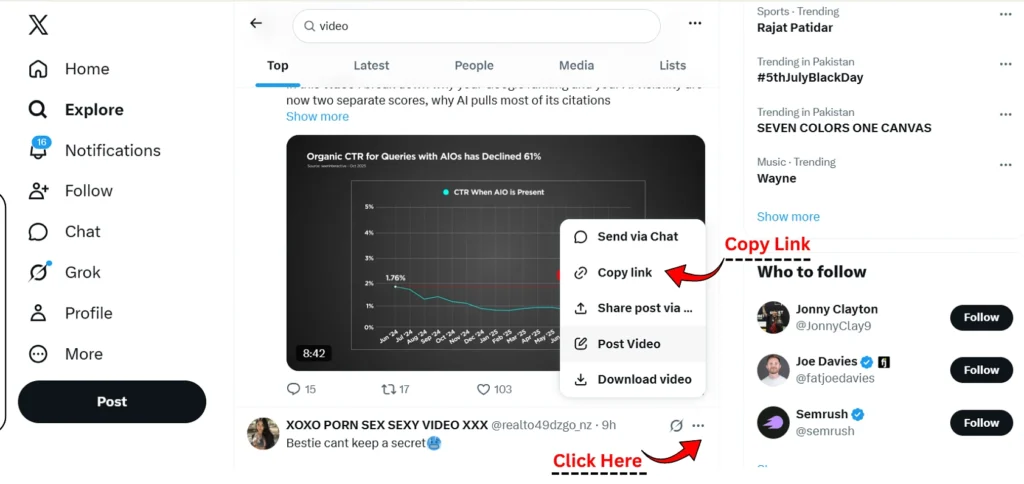
Everything starts with the link to the exact post holding the video.
- Open Twitter / X on your device, app or browser, either works.
- Find the post with the video you want to save.
- Tap or click the Share icon under the post.
- Choose Copy Link. The URL is now on your clipboard.
One thing worth knowing before you go further the post has to be public. Videos from private or protected accounts won’t process, and no browser tool can get around that.
Step 2: Paste the Link into the Downloader
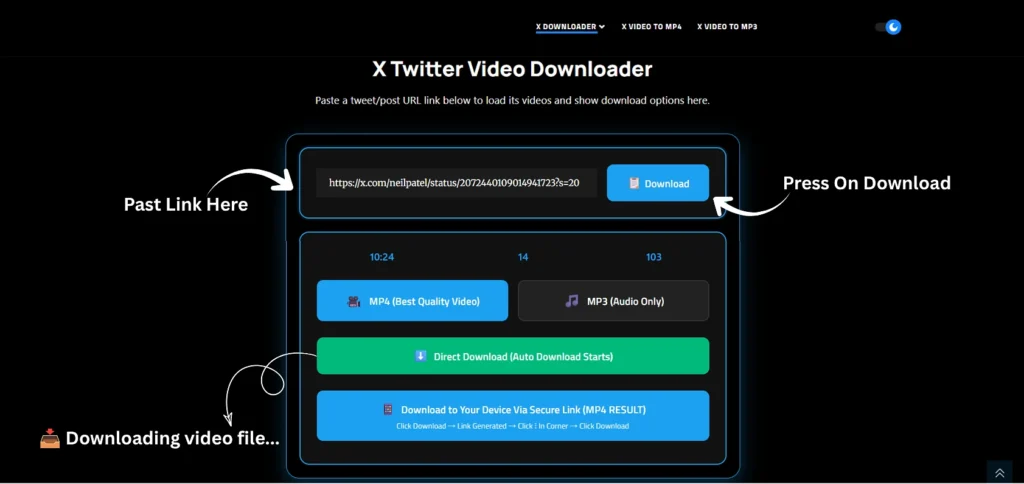
Now hand that link over to the tool.
- Open a new browser tab and go to xdownloader.io.
- Click into the main input box on the page.
- Right-click and Paste the link, or press Ctrl+V (Cmd+V on a Mac).
- Hit the Download button and let it process the link.
Processing usually takes a couple of seconds. The tool reads the post, finds the video file behind it, and builds a results page with your options. If nothing comes back, check the link first. The most common failure is copying the profile URL instead of the specific post, and the fix is going back to the exact tweet and copying again from the Share icon.
Step 3: Choose Your Format and Save the File
The results page gives you two formats to pick from:
- MP4 (Best Quality Video) saves the full video at the highest quality the post carries.
- MP3 (Audio Only) strips out just the sound, useful when the video is really a song, a speech or a podcast clip.
And two ways to get the file onto your device:
- Direct Download starts the download automatically in your browser, no extra clicks.
- Download to Your Device via Secure Link generates a private MP4 link for you to save from.
If you take the secure link route, the flow goes like this:
- Click Download and wait a moment while your link is generated.
- The video opens in a small player on the page.
- Click the ⋮ three-dot menu in the corner of that player.
- Click Download from the menu, and the MP4 saves straight to your device.
On a phone the same flow applies, and the file lands in your downloads folder or gallery depending on your browser settings.
A Few Things People Trip On
- The quality options depend on what the uploader posted. If someone uploaded a 480p video, no tool can hand you a 1080p version of it, because that file doesn’t exist.
- Animated GIFs on Twitter are actually short looping videos, and they’ll typically save as MP4 files rather than .gif.
- If the video plays inside the results page instead of downloading when you left-click, that’s normal browser behaviour. The right-click and Save link as… route is the reliable one on desktop.
- Age-restricted or region-locked posts can fail to process even when public, since the tool sees the same wall a logged-out visitor would.
When Yt-Dlp Still Makes Sense
Fair is fair. If you download videos in bulk, want to grab entire threads, or need automation, yt-dlp remains the stronger tool and worth the Python setup. For everyone else, the one-off saves, the phone users, the people who would rather not touch a terminal, a browser tool covers it in under a minute with nothing installed.
One last note on the sensible side of this: save videos for personal use, keeping a copy of something you made, or content you have permission to reuse. Reposting someone else’s video as your own is a different thing entirely, and no downloader makes that okay.