
To troubleshoot Blender FBX Python export errors, make sure that the FBX Add-on is turned on in the Edit > Preferences > Add-ons. Some of the most common methods are eliminating special characters in file paths, performing all modifiers, viewing only this – Selected Objects, and recalculating UVs. In case of continued errors, re-install Blender or disable conflicting third party addons.
import bpy
for obj in bpy.data.objects:
    if obj.type == "MESH" and obj.data is not None:
        if obj.data.validate(verbose=True):
            print(f"Error found: object {obj.name} had invalid mesh data!")
Then select all objects, press Ctrl + A → All Transforms, and try exporting again. This solves the problem for 80% of users. If it doesn’t work for you, keep reading every fix is covered below.
What Is the Blender FBX Export Python Error?
If you’ve ever hit the Export FBX button in Blender and been greeted by a wall of red text that starts with something like this:
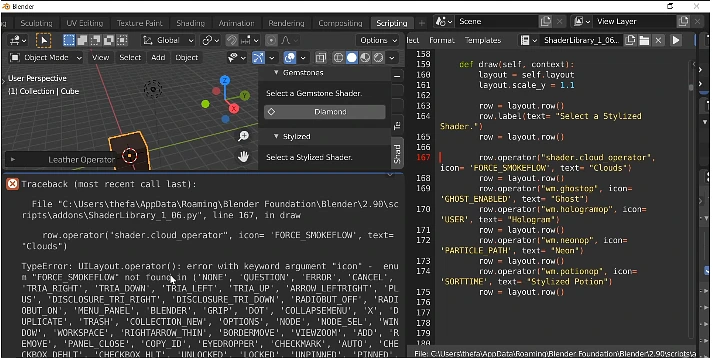
Python: Traceback (most recent call last):
  File "...io_scene_fbx/__init__.py", line 644, in execute
    return export_fbx_bin.save(self, context, **keywords)
  File "...export_fbx_bin.py", line 3198, in save
    ...
You’re not alone. This is one of the most frustrating and commonly reported errors in Blender’s history, appearing across versions 2.8 all the way through 4.x.
The error is a Python traceback, which means Blender’s FBX export script crashed while trying to process your scene. The message looks intimidating, but the root causes are actually well understood and fixable without any programming knowledge.
What Does This Error?
Blender’s FBX exporter is written in Python. When you click File → Export → FBX, Blender runs a script called export_fbx_bin.py to convert your scene into the .fbx format.
A Python traceback means that script hit an unexpected condition it couldn’t handle like corrupted mesh geometry, a broken UV map, or a file path it couldn’t write to. The script stops mid-execution and dumps the error log into Blender’s Info Bar and System Console.
The key line to look for is always the last line of the traceback that’s where the actual crash happened. Common last lines include:
KeyErrorusually a missing UV or material data.ValueErroroften a transform or geometry issue.UVIndexalmost always a broken UV map.AttributeErroroften a modifier or object type conflict.
Why Does the FBX Export Error Happen?
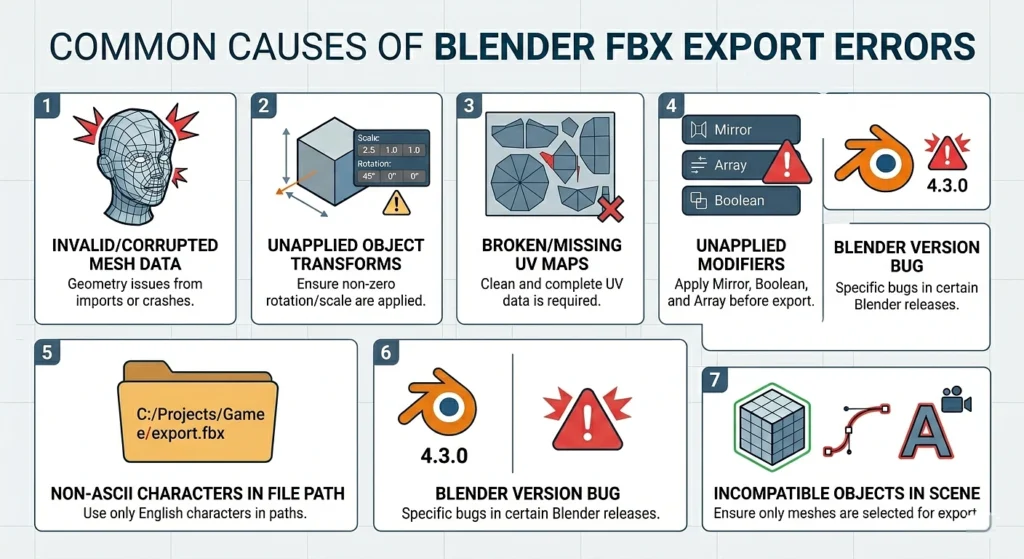
Complete Fix Guide – Step by Step
Work through these fixes in order. Start with Fix 1, test the export after each one, and stop when it works.
1: Validate and Repair Mesh Data
This is the root cause for the majority of FBX export Python errors. Blender has a built-in mesh validator that can detect and auto-repair corrupted geometry.
Steps:
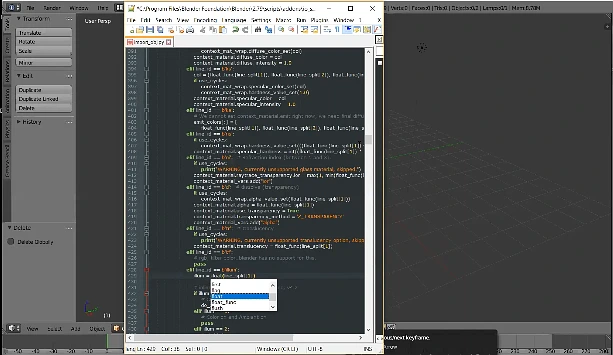
- Go to the Scripting workspace (top menu bar in Blender).
- Click New to open a new script.
- Paste the following code:
import bpy
for obj in bpy.data.objects:
    if obj.type == "MESH" and obj.data is not None:
        if obj.data.validate(verbose=True):
print(f"Error found: object {obj.name} had invalid mesh data!")- Click Run Script (the play button).
- Check the System Console (Window → Toggle System Console) for output.
- If errors are found, they are automatically repaired.
- Save your file and try the FBX export again.
This script iterates through every mesh object in your scene, validates its geometry, and fixes any issues it finds all in seconds.
2: Apply All Object Transforms
Unapplied transforms are the second most common cause. Every mesh in your scene should have a clean transform (Location: 0,0,0 / Rotation: 0,0,0 / Scale: 1,1,1) before export.
Steps:
- In the 3D Viewport, press
Ato select all objects. - Press
Ctrl + A. - Choose All Transforms from the menu.
- Try the FBX export again.
You can also enable Apply Transform inside the FBX export dialog (under the Main tab) to have Blender handle this automatically during export.
3: Fix or Remove Broken UV Maps
If the last line of your traceback mentions UVIndex or uv2idx, your UV maps are the problem.
Steps:
- Select the problematic object and enter Edit Mode (
Tab). - Press
Ato select all geometry. - Go to Mesh → Clean Up → Merge by Distance to remove duplicate vertices.
- Open the UV Editor, select all UVs (
A), and check for any that are stacked exactly on top of each other or are outside the 0–1 range - If the UV map is dispensable, go to Object Data Properties → UV Maps and delete it entirely, then re-unwrap with
U → Smart UV Project
4: Apply All Modifiers
The FBX exporter needs to evaluate your final mesh geometry. Unapplied modifiers especially Array, Boolean, Mirror, and Subdivision Surface can cause the exporter to fail.
Steps:
- Select your object.
- Go to the Properties Panel → Modifier Properties (the wrench icon).
- Click Apply on each modifier from top to bottom.
- Repeat for every object in the export.
- Try the FBX export again.
Alternatively, in the FBX export dialog, the Apply Modifiers checkbox (under Object Types) tells Blender to apply modifiers during export without permanently modifying your scene.
5: Use an ASCII-Only File Path
If your Windows username, folder name, or destination path contains non-English characters, the Python file-writing function can silently fail or crash.
Steps:
- Create a new folder on your C: drive with a simple name, e.g.,
C:\FBX_Export\ - Set this as your export destination in the FBX dialog
- Try the export again
This is especially relevant for users whose system language is Arabic, Chinese, Japanese, Russian, or any language that uses non-Latin characters.
6: Convert Non-Mesh Objects Before Exporting
If your scene contains curves, text objects, or grease pencil drawings that are included in the export, they need to be converted to meshes first.
Steps:
- Select the non-mesh object
- Press
F3and search for Convert to Mesh, or go to Object → Convert → Mesh - Repeat for any other non-mesh objects
- Try the FBX export again
Alternatively, in the FBX export settings, under Object Types, deselect everything except Mesh to exclude non-mesh objects entirely.
7: Remove or Exclude Lights from Export (Blender 4.3 Bug)
Blender 4.3.0 introduced a specific bug where scenes containing lights caused the FBX exporter and importer to crash. This was traced to the removal of the shadow_color attribute from the light RNA.
If you are on Blender 4.3:
- In the FBX export dialog, under Object Types, uncheck Light
- Or temporarily delete all lights from your scene before exporting
- Alternatively, downgrade to Blender 4.2 LTS, which does not have this bug, until a patch is released
8: Isolate the Problem Object
If your scene has many objects and you can’t identify which one is causing the crash, narrow it down:
Steps:
- Select a single object
- In the FBX export dialog, enable Selected Objects Only under the Include section
- Try exporting just that object
- Repeat until you find the one that causes the error
- Apply the relevant fix above to that specific object
This is a great diagnostic technique when dealing with complex scenes.
9: Update Blender to the Latest Version
Some FBX export bugs are version-specific and have already been patched in newer releases. If you’re on an older build:
- Visit blender.org/download
- Download the latest stable release
- Open your
.blendfile in the new version and retry the export
Always keep a backup of your .blend file before upgrading, as files saved in newer versions cannot be reopened in older ones.
10: Export as GLTF/GLB Instead (Alternative Approach)
If you’ve tried everything and the FBX export is still failing and your end goal is a game engine or a real-time renderer consider switching formats entirely.
GLTF 2.0 (.glb/.gltf) is now the industry-standard open format supported by Unity, Unreal Engine, Godot, and most 3D tools. Blender’s GLTF exporter is actively maintained and significantly more stable than the FBX exporter.
To export: File → Export → glTF 2.0 (.glb/.gltf)
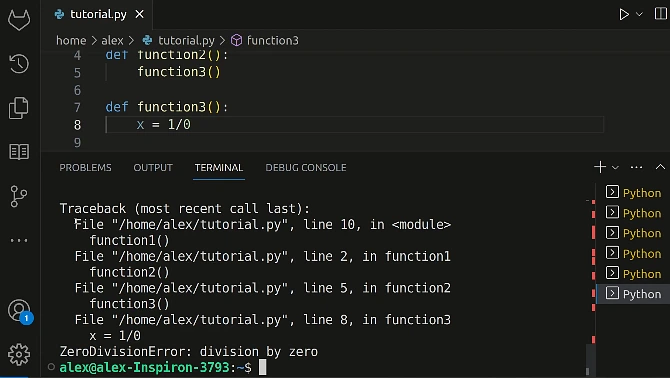
How to Read the Python Traceback
If none of the above fixes work, reading the traceback carefully will point you in the right direction. Here’s how to interpret it:
Python: Traceback (most recent call last):
  File "...export_fbx_bin.py", line 3094, in save_single   ← High-level function
    fbx_objects_elements(root, scene_data)
  File "...export_fbx_bin.py", line 2894, in fbx_objects_elements
    fbx_data_mesh_elements(objects, me_obj, scene_data, done_meshes)
  File "...export_fbx_bin.py", line 1174, in fbx_data_mesh_elements
    elem_data_single_int32_array(lay_uv, b"UVIndex", ...)   ← Specific failure point
KeyError: (0.5, 0.5)                                        ← The actual error
Read it from bottom to top. The last line is the actual error. The line above it is where in the code it happened. Search for that error type online along with “Blender FBX export” for targeted solutions.