
Your Claude Project says GitHub is connected, yet you keep seeing “failed to sync with GitHub,” and the repo no longer fills project knowledge the way it used to. These are two different problems. This guide shows how to tell them apart and fix each one, step by step.
This guide is built on a question a Claude user posted:
- Their Claude Project kept showing “failed to sync with GitHub“, even though the repo was connected.
- Their GitHub files stopped filling the project knowledge, and the project was set to retrieval mode.
- Pressing retrieve over and over changed nothing.
- They wanted to keep using the claude.ai web chat with GitHub, not move to Claude Code.
Two Separate Problems Hiding in One Complaint
Before you change anything, split the problem in two:
“Failed to sync with GitHub” or “Syncing knowledge…” that never ends:
Project shows retrieval mode, files are not “in” the knowledge:
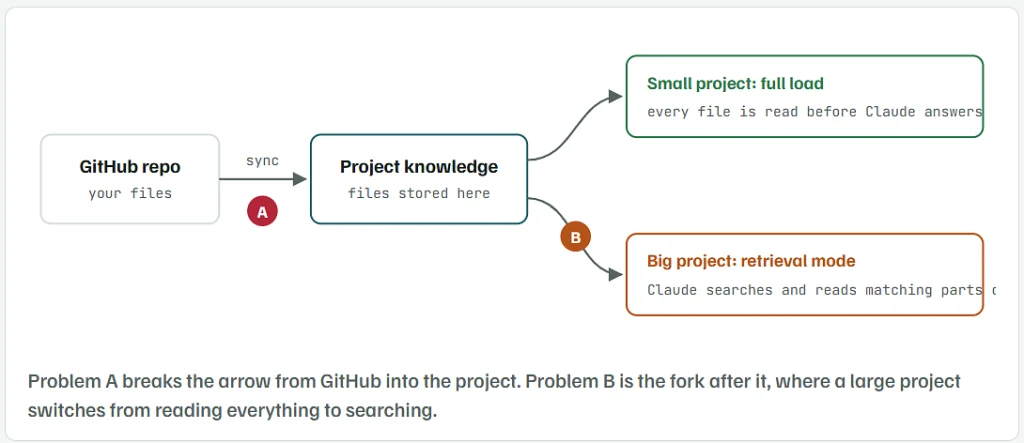
Problem A: the sync itself Claude cannot pull fresh files from GitHub. This is a connection fault, mostly on Anthropic’s side.
Problem B: the project size Not a fault. The project has grown too big to load at once, so Claude searches it instead.
Problem B is a size issue you can fix today. Problem A may need a workaround while Anthropic fixes it. The steps below handle both, in the order that wastes the least time.
What “Retrieval Mode” Really Means in a Claude Project
- Anthropic calls this feature RAG for Projects. RAG stands for retrieval augmented generation, which simply means “search first, then answer.”
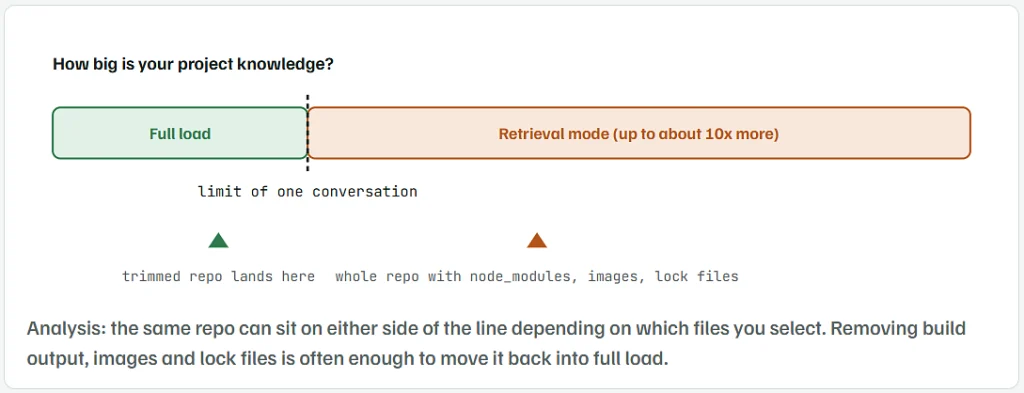
- It turns on by itself when project knowledge gets close to, or goes past, what Claude can hold in one conversation.
- Once it is on, Claude does not load every file. It runs a project knowledge search and reads only the parts that match your question.
- The project can then hold up to 10 times more content than before.
- There is no switch to turn it off. The only way back to full loading is to make the project smaller.
- It is available on Pro, Max, Team and Enterprise plans.
So “retrieve” is not a button that pulls the repo back in. Retrieval mode means the repo is too big to load whole. Pressing retrieve again cannot change that, but trimming the repo can.
Why “Failed to Sync With GitHub” Shows Up While the Repo Still Says Connected
- “Connected” only means Claude is logged in to your GitHub account. It does not mean the last file pull worked.
- The sync step has been unreliable for many users. Reports on the public issue tracker go back to mid-2025, and new ones were still being added in October 2026.
- Reported symptoms include:
- “Syncing knowledge…” that runs for 12 to 24 hours
- a project that stops accepting new messages while the sync is stuck
- a repo that shows as connected while Claude says it sees no files
- “Add repository” pasting the plain repo link into the message box instead of attaching files
- No official cause has been published. The steps below are the fixes that users have reported working, from quickest to most reliable.
Check How Much of the Project Your Repo Is Using
- Open your Project on claude.ai.
- Look at the project knowledge panel on the right.
- Note the capacity figure and whether the project is marked as using retrieval.
- Click the GitHub repo entry to see which folders and files are selected.
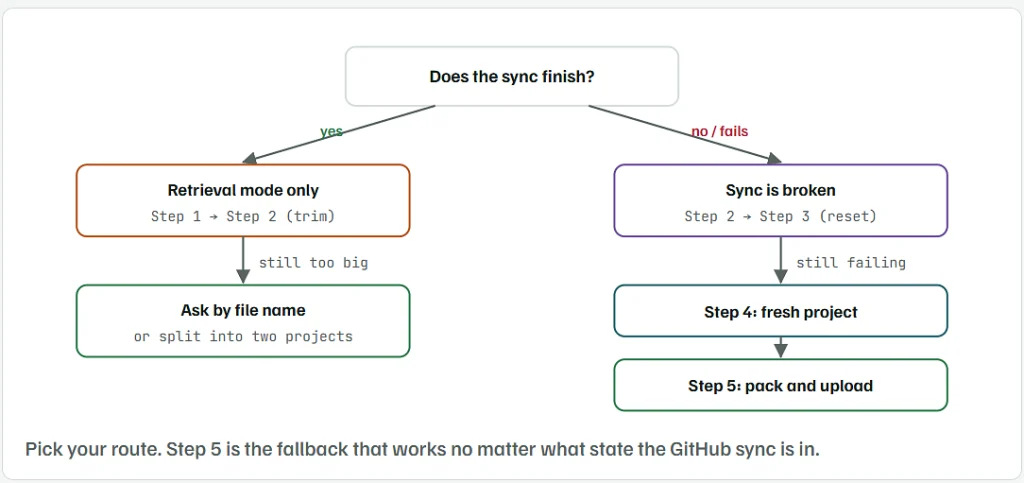
- Retrieval shown and the sync works: go to Step 2. Your only problem is size.
- Sync fails or never ends: still do Step 2 first. A smaller selection gives the sync less to pull, then move on to Step 3.
Trim the Repo Down to the Files Claude Needs
- In the project knowledge panel, open the repo and choose Configure files.
- Untick folders Claude never needs to read:
node_modules,vendor,venvdist,build,.next,coverage- images, fonts, videos and PDFs
- lock files such as
package-lock.json,yarn.lock,poetry.lock - test fixtures and large data files
- Keep the source folders you ask about, plus the
READMEand main config files. - Save, then press Sync.
- Check the capacity figure again. Once it drops below the limit, the project goes back to full load on its own.
Lock files alone can be tens of thousands of lines. They are often the single biggest reason a small app pushes a project into retrieval mode.
Reset the GitHub Connection the Way That Has Worked for Others
Plain disconnect and reconnect rarely helps. These are the versions users reported success with:
- Remove the repo from the project first. A project stuck on “Syncing knowledge…” often starts accepting messages again once the repo is removed.
- On GitHub, open
github.com/settings/applications, find Claude and revoke it. - Open a private or incognito browser window and sign in to claude.ai.
- In the project, add the repo again from + → GitHub and approve the GitHub screen when it opens.
- On GitHub, go back to Settings → Applications → Claude and check that your account and any organization show access granted. Press Grant if it is offered.
- Select only the trimmed set of files from Step 2, then sync.
Results have been mixed. One user needed many tries before the incognito method worked, and another found the Grant fix stopped working later. If two attempts fail, move to Step 4 or Step 5 instead of looping.
Try the Repo in a Fresh Project
- Create a new Project.
- Copy your project instructions across from the old one.
- Add the GitHub repo there, with the trimmed file selection.
- Ask a test question that names one file, for example: “What does src/api/client.ts export?”
- Several users found a repo that would not sync in an old project worked in a brand-new one.
- If it works, keep the new project and delete the old one once you have moved what you need.
Pack Your Repo Into Text Files and Upload Them Yourself
Users on the issue tracker confirm that manually uploaded files keep working when GitHub sync does not. This step turns your repo into a few Markdown files you can drag into project knowledge. It does not depend on the GitHub connector at all.
What You Need
- Your repo cloned on your computer (
git cloneor GitHub Desktop). - Python 3 installed. Check by running
python --version.
The Script
- Skips
node_modules, build folders, images, fonts and lock files. - Puts each file under a
## File: pathheading so Claude can find it by name. - Splits the output into parts of about 60,000 tokens each, so you can upload only the parts you need.
Save this as pack_repo.py:
import os
import sys

# Folders and file types Claude does not need
SKIP_DIRS = {".git", "node_modules", "dist", "build", ".next", "venv", ".venv",
             "__pycache__", "vendor", "coverage", ".idea", ".vscode"}
SKIP_EXT = {".png", ".jpg", ".jpeg", ".gif", ".webp", ".ico", ".svg", ".pdf",
            ".zip", ".gz", ".mp4", ".mp3", ".woff", ".woff2", ".ttf", ".lock",
            ".exe", ".dll", ".so", ".pyc", ".map"}
MAX_FILE_KB = 200          # skip any single file bigger than this
TOKEN_BUDGET = 60000       # rough size for each output file

def main():
    repo = sys.argv[1] if len(sys.argv) > 1 else "."
    name = os.path.basename(os.path.abspath(repo))
    parts, current, used, total = [], [], 0, 0

    for root, dirs, files in os.walk(repo):
        dirs[:] = sorted(d for d in dirs if d not in SKIP_DIRS)
        for f in sorted(files):
            path = os.path.join(root, f)
            rel = os.path.relpath(path, repo).replace("\\", "/")
            if os.path.splitext(f)[1].lower() in SKIP_EXT:
                continue
            if os.path.getsize(path) > MAX_FILE_KB * 1024:
                continue
            try:
                with open(path, encoding="utf-8") as fh:
                    text = fh.read()
            except (UnicodeDecodeError, OSError):
                continue
            block = f"\n## File: {rel}\n\n```\n{text}\n```\n"
            tokens = len(block) // 4          # about 4 characters per token
            if current and used + tokens > TOKEN_BUDGET:
                parts.append(current)
                current, used = [], 0
            current.append(block)
            used += tokens
            total += tokens

    if current:
        parts.append(current)

    for i, blocks in enumerate(parts, 1):
        out = f"{name}-part{i}.md"
        with open(out, "w", encoding="utf-8") as fh:
            fh.write(f"# {name} (part {i} of {len(parts)})\n")
            fh.writelines(blocks)
        print(f"Wrote {out}")

    print(f"About {total:,} tokens in {len(parts)} file(s)")

if __name__ == "__main__":
    main()
Run It
- Open a terminal (PowerShell on Windows, Terminal on Mac).
- Go to the folder where you saved the script.
- Run it with the path to your repo:
python pack_repo.py C:\Users\you\projects\my-app
- You will see something like:
Wrote my-app-part1.md
Wrote my-app-part2.md
About 104,350 tokens in 2 file(s)
- In your Claude Project, click + in project knowledge and upload the
.mdfiles. - When the code changes, run the script again, delete the old parts from the project, and upload the new ones.
Change What Gets Packed
- To skip another folder, add its name to
SKIP_DIRS, for example"tests". - To make smaller parts, lower
TOKEN_BUDGET, for example to30000. - To pack one folder only, point the script at it:
python pack_repo.py my-app/src.
If You Use Node.js Instead
The open-source tool Repomix does the same job with one command, run from inside your repo folder:
TerminalCopy
npx repomix --style markdown --ignore "**/*.lock,**/dist/**,**/node_modules/**"
It writes a single file named repomix-output.md that you upload the same way.
Before uploading, check the files for secrets. Open the output and search for.env,API_KEY,passwordandtoken. Delete anything private before it goes into the project.
How to Ask Questions So Retrieval Finds the Right File
If your project stays in retrieval mode, the way you ask makes a big difference. Anthropic’s own tips for RAG projects, applied to code:
- Name the file or folder: “In src/auth/session.ts, why does refreshToken run twice?” works better than “why does login break?”
- Use real function and class names from your code. The search matches words, so exact names find the right place.
- Keep related code in the same project. Split unrelated apps into separate projects.
- Use clear file names for anything you upload by hand, such as
my-app-api-routes.mdinstead ofpart2.md.
When to Report It to Anthropic Instead of Trying Again
- Report it if the sync still fails after Steps 2 to 4, or a project stays stuck on “Syncing knowledge…” for more than a few hours.
- Use the thumbs-down button on a reply or the help option on claude.ai. Reports about the web app filed in the Claude Code GitHub repo get closed as off-topic.
- Include:
- the exact error text
- whether the repo is public or private, and personal or organization
- roughly how many files are selected
- the date it last worked
- Keep working from Step 5 while you wait. Switch back to the GitHub sync once a test question in a fresh project gets an answer from your files.