

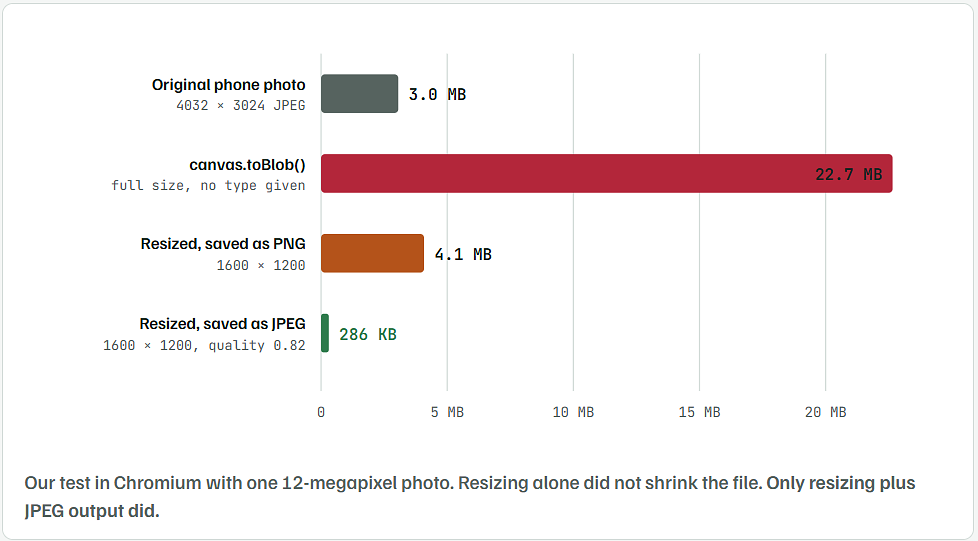
The short answer: draw the photo onto a smaller canvas, then save it with canvas.toBlob(callback, 'image/jpeg', 0.82). If you leave out the type, the browser saves a PNG. For a photo, a PNG can be bigger than the file you started with.
What Happened to Our Test Photo at Each Step
- The photo: 4032 × 3024 pixels, the size a 12-megapixel phone camera produces. We built it from a real landscape photo enlarged to that size with light camera-style grain added. It saved as a 3.0 MB JPEG.
- The browser: headless Chromium, run on October 13, 2026.
- What we measured: the exact byte size of each Blob the browser produced.
| Method | Size | Compared with original |
|---|---|---|
| Original photo | 3.0 MB | – |
toDataURL(), full size, no type | 30.2 MB of text | 10× bigger |
toBlob(), full size, no type | 22.7 MB | 7.5× bigger |
| 1600 px, PNG | 4.1 MB | 35% bigger |
| 1600 px, JPEG 0.92 | 432 KB | 86% smaller |
| 1600 px, JPEG 0.82 | 286 KB | 91% smaller |
| 1600 px, JPEG 0.82, as a data URL | 381 KB | 33% more than the Blob |
| 1600 px, WebP 0.82 | 202 KB | 94% smaller |
| 1600 px, JPEG 0.60 | 187 KB | 94% smaller |
Your numbers will differ by photo. The order will not PNG is always the largest for camera photos, and JPEG or WebP is always far smaller.
Five Reasons a Resized Image Ends Up Bigger Than the Original
- No type given means PNG.
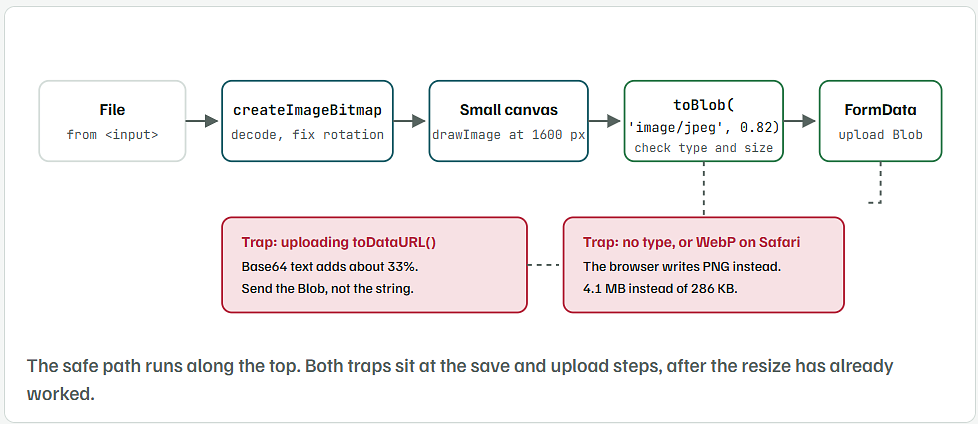
canvas.toBlob(cb)andcanvas.toDataURL()both save PNG by default. PNG is lossless. It stores every grain of camera noise, so photos balloon. - Quality is ignored for PNG.
toBlob(cb, 'image/png', 0.5)does nothing with the0.5. The quality number only works for JPEG and WebP. - Data URLs add a third.
toDataURL()returns Base64 text, which is about 33% larger than the same image as a Blob. Upload the Blob instead. - Safari cannot save WebP.
toBlob(cb, 'image/webp')in Safari on Mac and iPhone quietly returns a PNG. The same happens in any browser for a type it does not support. - The canvas is still full size. If the canvas width and height match the original photo, nothing was resized. Only the format changed.
Add the Resize Function That Keeps Files Under a Size Limit
Save this as resize-image.js. It has no dependencies. It only uses standard browser features that current Chrome, Edge, Firefox and Safari all support. We ran it in Chromium for the numbers in this article.
// Resize an image File in the browser and keep the result under a size limit.
async function resizeImage(file, options = {}) {
  const {
    maxWidth = 1600,
    maxHeight = 1600,
    maxBytes = 500 * 1024,   // 500 KB
    type = 'image/jpeg',
    quality = 0.82,
    minQuality = 0.5,
  } = options;

  // 1. Decode the file. createImageBitmap turns the photo the right way up.
  const bitmap = await createImageBitmap(file);

  // 2. Work out the new size without stretching the picture.
  let scale = Math.min(1, maxWidth / bitmap.width, maxHeight / bitmap.height);
  let q = quality;
  let blob;

  // 3. Draw, encode, and tighten until the file fits.
  for (let attempt = 0; attempt < 8; attempt++) {
    const width = Math.round(bitmap.width * scale);
    const height = Math.round(bitmap.height * scale);
    const canvas = drawScaled(bitmap, width, height, type);

    blob = await new Promise((resolve) => canvas.toBlob(resolve, type, q));

    // Safari cannot make WebP and quietly hands back a PNG instead.
    if (blob.type !== type) {
      blob = await new Promise((resolve) => canvas.toBlob(resolve, 'image/jpeg', q));
    }

    if (blob.size <= maxBytes) break;
    if (q > minQuality) q = Math.max(minQuality, q - 0.1);
    else scale *= 0.8;
  }

  bitmap.close();

  // 4. Never upload something bigger than what the user picked.
  return blob.size < file.size ? blob : file;
}

// Shrink in halves first, then do the last step. This keeps edges sharp
// in browsers that ignore imageSmoothingQuality.
function drawScaled(source, width, height, type) {
  let current = source;
  let w = source.width;
  let h = source.height;

  while (w / 2 > width) {
    w = Math.round(w / 2);
    h = Math.round(h / 2);
    const step = document.createElement('canvas');
    step.width = w;
    step.height = h;
    const sctx = step.getContext('2d');
    sctx.imageSmoothingQuality = 'high';
    sctx.drawImage(current, 0, 0, w, h);
    current = step;
  }

  const canvas = document.createElement('canvas');
  canvas.width = width;
  canvas.height = height;
  const ctx = canvas.getContext('2d');
  ctx.imageSmoothingQuality = 'high';

  // JPEG has no transparency, so paint white first or clear areas turn black.
  if (type === 'image/jpeg') {
    ctx.fillStyle = '#ffffff';
    ctx.fillRect(0, 0, width, height);
  }

  ctx.drawImage(current, 0, 0, width, height);
  return canvas;
}
What Each Part of the Function Does
createImageBitmap(file)decodes the photo. It also follows the photo’s rotation tag, so phone pictures do not come out sideways.Math.min(1, ...)picks one scale for both sides. The picture keeps its shape and is never made bigger than it was.drawScaled()shrinks by halves before the last step. That keeps edges sharp in browsers that ignoreimageSmoothingQuality.- The white fill stops transparent PNG areas from turning black, since JPEG has no transparency.
blob.type !== typecatches Safari handing back a PNG when you asked for WebP. It saves a JPEG instead.- The loop lowers quality in steps of 0.1 down to 0.5. If the file still does not fit, it shrinks the size by 20% and tries again.
- The last line returns the original file when it was already smaller, so a small image never gets worse.
Resize the Photo Before It Leaves the Browser
This page takes a picked photo, shrinks it, shows the before and after size, and uploads the small version.
<input type="file" id="photo" accept="image/*">
<p id="info"></p>
<img id="preview" alt="Resized preview" style="max-width:100%">

<script src="resize-image.js"></script>
<script>
document.getElementById('photo').addEventListener('change', async (event) => {
  const file = event.target.files[0];
  if (!file) return;

  const small = await resizeImage(file);

  document.getElementById('info').textContent =
    `${(file.size / 1048576).toFixed(2)} MB → ${Math.round(small.size / 1024)} KB`;
  document.getElementById('preview').src = URL.createObjectURL(small);

  const form = new FormData();
  form.append('photo', small, file.name.replace(/\.\w+$/, '.jpg'));
  await fetch('/upload', { method: 'POST', body: form });
});
</script>
- Change
/uploadto your own upload address. FormDatasends the Blob as a normal file. Your server reads it the same way as any file upload.- The file name is switched to
.jpgso the server does not think it got a PNG or HEIC file.
Tested result: our 3.0 MB test photo went in. The page showed 3.04 MB → 286 KB, and the server received a 292,669-byte upload.
Choose the Width, Format and Quality for Your Use
| Where the image is shown | maxWidth | quality | maxBytes |
|---|---|---|---|
| Profile picture or avatar | 400 | 0.80 | 60 KB |
| Product or listing photo | 1200 | 0.82 | 200 KB |
| Blog or article image | 1600 | 0.82 | 400 KB |
| Full-screen gallery | 2560 | 0.85 | 900 KB |
- JPEG works in every browser. Use it unless you have a reason not to.
- WebP was 29% smaller than JPEG in our test, but Safari cannot save it. The function falls back to JPEG for you.
- Keep PNG only for screenshots, logos and images that need transparency.
- Below 0.6 quality, blocky patches start to show in skies and skin. Shrink the width instead.
Example for a product photo:
const small = await resizeImage(file, {
  maxWidth: 1200,
  maxHeight: 1200,
  maxBytes: 200 * 1024,
});
In our test this gave a 1200 × 900 JPEG of 186 KB in about a quarter of a second.
Check the Result in the Browser Console
Before you blame the server, check what the browser actually made. Paste this into the console after a Library:
const bmp = await createImageBitmap(small);
console.table({
  type: small.type,
  sizeKB: Math.round(small.size / 1024),
  width: bmp.width,
  height: bmp.height,
});
typeshould readimage/jpegorimage/webp. If it saysimage/png, the type argument is missing or unsupported.widthandheightshould match your limit. If they match the original photo, the canvas was never made smaller.sizeKBshould be under yourmaxBytes.
Mistakes That Bring the Huge File Back
- Setting the size with CSS.
canvas.style.width = '800px'only changes how it looks on screen. Setcanvas.widthandcanvas.height. - Calling
toBlobwith only a callback. Always pass'image/jpeg'or'image/webp'as the second argument. - Uploading the data URL string. It is a third bigger and slower to send. Upload the Blob with
FormData. - Trusting WebP on iPhone. Check
blob.typeevery time. - Resizing an image that is already small. A 20 KB thumbnail run through canvas can come back larger than it went in. The function returns the original when that happens.
- Expecting the photo’s details to survive. Canvas drops the camera data stored in the file, including GPS location. This is usually good for privacy, but keep the original if you need that data.