

Stuck on a red failed to synchronize all databases error? Here’s the 30-second fix before the full explanation:
Your terminal shows:
error: failed to synchronize all databases (no servers configured for repository)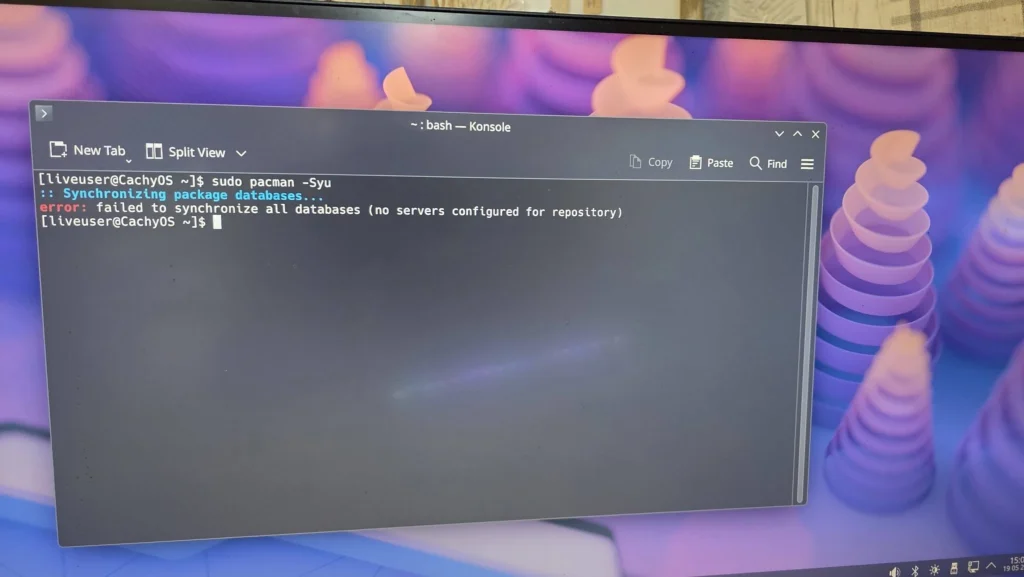
Quick Fix: Open your terminal and run sudo cachyos-rate-mirrors then sudo pacman -Syy, then sudo pacman -Syu. This rebuilds your mirror list and completes the update. If that’s all you needed you are done read on only if it didn’t work.
Now the detailed version.
What This Error Actually Means
If you ran sudo pacman -Syu and got stopped by failed to synchronize all databases (no servers configured for repository), here’s what happened.
- Pacman is the package manager on CachyOS it installs and updates your software. To do that, it needs a list of mirrors: servers that host the software packages. That list lives in plain text files on your system.
The phrase “no servers configured for repository” means pacman looked for those mirror lists and found them empty. It didn’t fail to download anything it never had an address to download from. Picture a delivery driver holding a parcel with a blank address label.
This is not a lock file problem. If other guides tell you to delete db.lck, ignore that the lock file fixes a different error (unable to lock database). Your error is about servers, so the fix is about mirrors.
The usual triggers are a fresh install where the mirror list was never filled in, or a mirror-ranking tool that got interrupted and saved an empty file.
Confirm the Mirror List is Empty
Verify the diagnosis first. In your terminal, run:
cat /etc/pacman.d/mirrorlistcat prints a file’s contents to the screen. If the file is empty, or every line starts with a # (a comment, which pacman ignores), your diagnosis is confirmed.
CachyOS keeps its own separate mirror file too check it as well:
cat /etc/pacman.d/cachyos-mirrorlistIf both are blank or fully commented out, move to Step 2.
Regenerate the CachyOS Mirror List
CachyOS includes a tool that finds fast, working mirrors near you and writes them into the mirror files automatically. Run:
sudo cachyos-rate-mirrorssudo runs the command with administrator rights, which is needed because it edits system files. Let the tool finish completely interrupting it is exactly what creates an empty file in the first place.
When it’s done, run the cat command from Step 1 again. You should now see several lines beginning with Server = https://....
If The Tool isn’t Available, Add a Mirror Manually
On a brand-new live environment, cachyos-rate-mirrors may not be installed yet. In that case, add one mirror by hand to get unstuck.
Open the mirror file in a beginner-friendly text editor:
sudo nano /etc/pacman.d/mirrorlistAdd this line at the top:
Server = https://geo.mirror.pkgbuild.com/$repo/os/$archThat is the official Arch Linux geo-mirror, which automatically routes you to a nearby server. Save with Ctrl + O then Enter, and exit with Ctrl + X.
This gets the core Arch repositories working. The CachyOS-specific repositories still need their own mirror, so once you’re back online, run sudo cachyos-rate-mirrors (Step 2) it will now succeed.
Refresh the Databases
With real mirrors in place, force pacman to download fresh database files:
sudo pacman -SyyThe -S means sync, and the doubled yy forces a full re-download of the database even if pacman thinks it’s already current. The red error should now be replaced by download progress lines.
Run the Full Update
Complete the update you originally wanted:
sudo pacman -SyuThe u means upgrade it installs the newer versions of everything on your system. If this runs without the red error, the problem is solved.
If You Hit a Different Error During The Update
Once mirrors are reachable, pacman may surface a different issue most often a signature or GPG error. That happens when your security keyrings are outdated. Refresh them with:
sudo pacman -Sy archlinux-keyring cachyos-keyringThen run sudo pacman -Syu again.
Quick Recap
The “no servers configured for repository” error means your mirror list is empty nothing is locked or corrupted. The fix is to repopulate that list with sudo cachyos-rate-mirrors (or a manual mirror entry if the tool isn’t installed yet), then run sudo pacman -Syy followed by sudo pacman -Syu. Once pacman has a real address to fetch from, synchronization completes normally.