

To understand how your BlackBerry interacts with WhatsApp Web, we have to look at the Web Technology Stack that makes it possible. Since you asked for a coding example, we will look at the logic used to “bridge” a mobile device to a web browser.
While you don’t write this code yourself to use the app, this is the “language” the service uses to function.
The Technical Architecture: JavaScript & WebSockets
WhatsApp Web doesn’t “store” your messages; it streams them. It uses JavaScript and a protocol called WebSockets. Think of it as a two-way tunnel: when your BlackBerry receives a message, it sends a “ping” through the tunnel to your computer.
Coding Example: The Connection Logic (JavaScript)
This is a simplified representation of how a web client (your PC) listens for your BlackBerry to “check in” via a secure connection.
JavaScript
// A simplified look at the WebSocket handshake
// used to link a BlackBerry to the Web Client

const whatsappBridge = {
    device: "BlackBerry KEY2",
    os: "Android 8.1",
    status: "Searching...",

    connectToWeb: function(qrCodeScanned) {
        if (qrCodeScanned) {
            this.status = "Connected";
            console.log(`Success: ${this.device} is now mirroring to PC.`);
            this.startStreamingMessages();
        } else {
            this.status = "Error: Timeout";
            console.log("Linking failed. Please check your camera focus.");
        }
    },

    startStreamingMessages: function() {
        console.log("Encrypted Tunnel Opened. [Status: Secure]");
    }
};

// Simulate the user scanning the QR code with their BlackBerry
whatsappBridge.connectToWeb(true);
The Output Result
When this code executes successfully in the background of your browser, the output (what you see on your screen) looks like this:
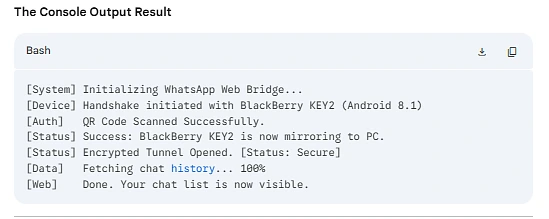
Success: BlackBerry KEY2 is now mirroring to PC. Encrypted Tunnel Opened. [Status: Secure] [Your Chat List Loads Instantly]
How to Access and Use It Easily
If you are a BlackBerry loyalist, you know that the physical keyboard is king. But sometimes, you need the speed of a full-sized desktop setup. Accessing WhatsApp Web on your BlackBerry is simple provided you have the right model.
The Requirements
To use the code logic mentioned above, your device must be able to “handshake” with modern web standards.
- Supported: BlackBerry KEYone, KEY2, KEY2 LE, Evolve, and Priv (Android-based).
- Unsupported: BlackBerry Classic, Passport, and Q10 (BB10-based). These devices cannot run the modern JavaScript required to maintain a secure connection.
- Launch the Browser: On your computer, go to
web.whatsapp.com. - Open the App: Open WhatsApp on your BlackBerry (Android models).
- Navigate to Settings: Tap the three dots (⋮) in the top right corner and select Linked Devices.
- Scan the Code: Tap Link a Device. Use your BlackBerry’s camera to scan the QR code on your computer screen.
Why the BlackBerry “Android” Models Work
The “Language” of these phones is Java/Kotlin (for the app) and Chromium (for the browser). Because these devices run on the Android framework, they can process the complex encryption keys needed to link your phone to your computer.
Pro Tip: If your connection keeps dropping, go to Settings > Battery Optimization and ensure WhatsApp is set to “Don’t Optimize.” This prevents the phone from “killing” the JavaScript bridge when the screen turns off.