



You install Unsloth Studio, and before you even load a model, Windows starts throwing the same popup again and again. Here is what that popup means in plain words, why it lands on some PCs and not others, and the exact order to fix it in.
The message that started this guide came from a user who had just installed Unsloth Studio on Windows 10. Every few seconds, a window like this one came back:

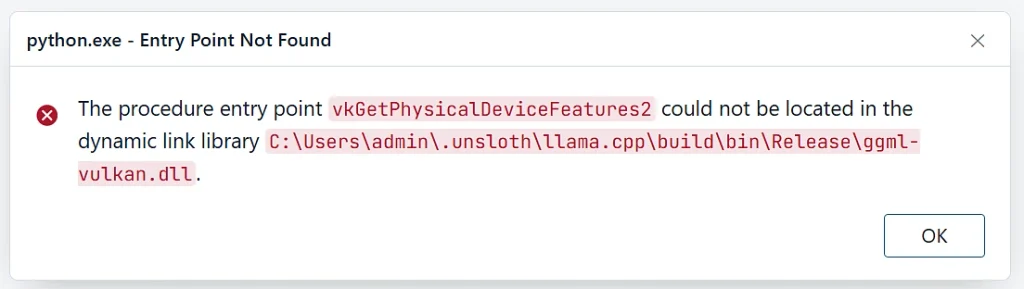
One small thing first. In the original post, the function name was typed as vkGetPhysicaIDeviceFeatures2, with a capital “I” where a lowercase “l” belongs. If you are searching for help, use the correct spelling, vkGetPhysicalDeviceFeatures2, or you will get almost nothing back.
What The Popup Is Actually Telling You
This is not a Python error, even though the title says python.exe. It is Windows itself complaining while it loads a file. Read the message one piece at a time and it tells the whole story:
- python.exe is the process that was running. Unsloth Studio is a Python app, so anything it loads shows up under that name.
- Entry Point Not Found means Windows went looking for a named function inside a DLL and the function was not there.
- ggml-vulkan.dll is the GPU backend of llama.cpp, the engine Unsloth Studio uses to chat with GGUF models. This build talks to your graphics card through Vulkan.
- vkGetPhysicalDeviceFeatures2 is a standard Vulkan function. It asks the graphics card, “what features do you support?”
Here is the part that trips people up. ggml-vulkan.dll does not contain that function. It asks for it from another file, vulkan-1.dll, which is the Vulkan loader that your graphics driver installs into Windows. When the loader Windows hands over is too old to have that function, the whole chain stops and you get the popup.

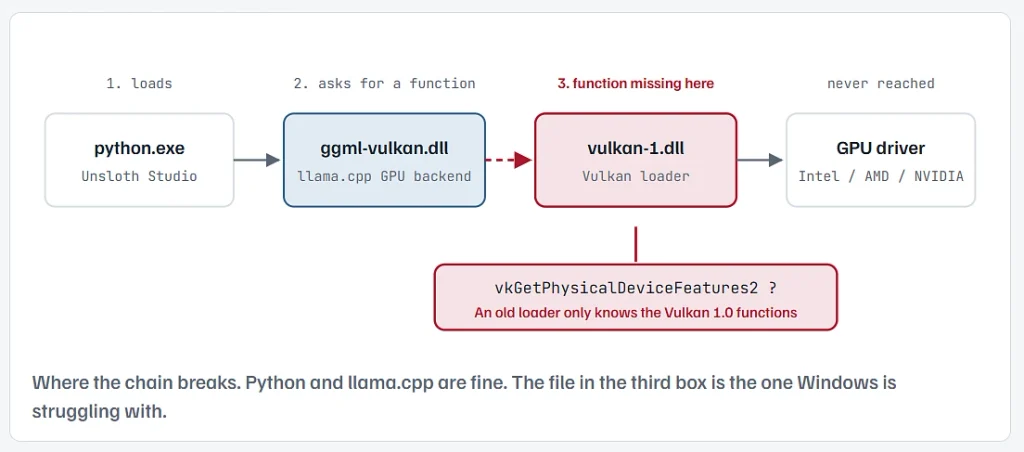
Why An Old Vulkan File Breaks A Brand New Install
Vulkan has versions, the same way Windows does. The function in your popup started life as an add-on called vkGetPhysicalDeviceFeatures2KHR, and in Vulkan 1.1 it was promoted into the core API under its short name. The Vulkan guide from Khronos spells this out: a Vulkan 1.0 loader may not know that vkGetPhysicalDeviceFeatures2 exists at all.
Modern llama.cpp builds are written for Vulkan 1.1 and newer. So the install itself is brand new, but it is landing on a PC where the Vulkan side was set up years ago. That gap is the whole problem.

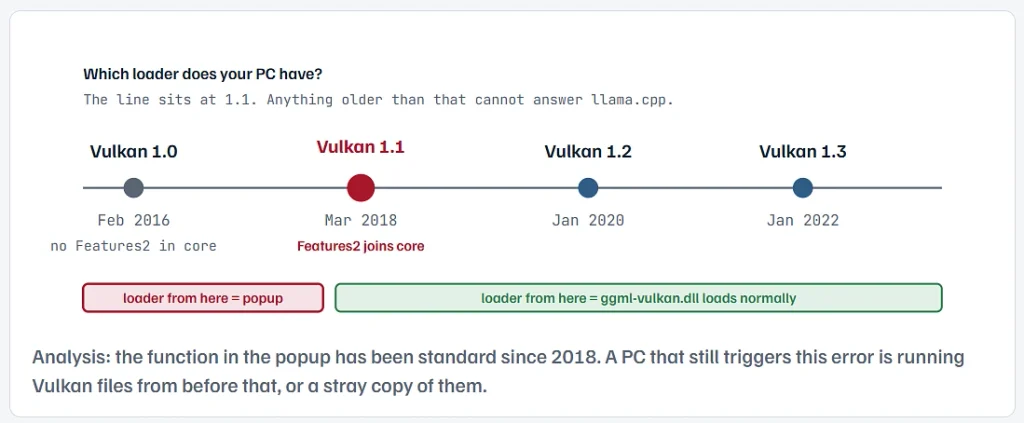
In practice, an old
vulkan-1.dllgets in front of llama.cpp in one of three ways:
- The graphics driver is old. The driver is what installs the loader into
C:\Windows\System32. A Windows 10 machine that has been running the same driver since 2017 or so still carries a 1.0-era loader. - A stray copy sits on your PATH. Some games, emulators and older tools ship their own
vulkan-1.dll. If that folder is on your PATH, Windows can pick that copy up before the proper one. - The graphics chip itself stops at Vulkan 1.0. Older integrated graphics, the kind built into laptops and office PCs from the middle of the last decade, may never get a driver past 1.0. No update will fix that, and you need the fallback in Step 6.
Why did Unsloth pick the Vulkan build in the first place? Its installer looks at your graphics hardware. NVIDIA cards get a CUDA build, while AMD cards and integrated graphics are pushed to Vulkan, which Unsloth’s own release notes describe as the default for AMD and for integrated GPUs. So this popup mostly shows up on PCs with Intel or AMD graphics, and especially on older ones.

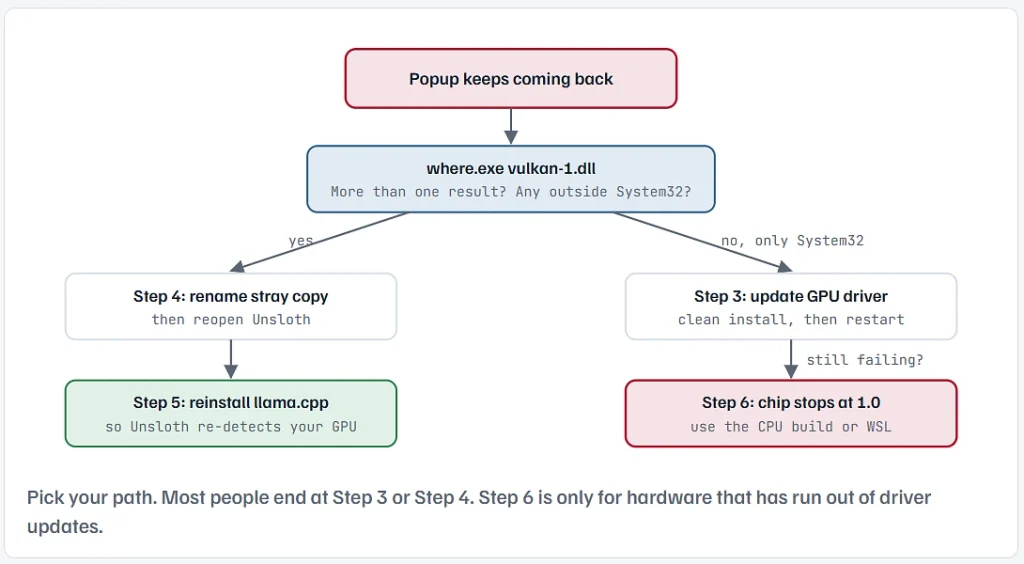
All the commands below go into Windows PowerShell. Press the Start button, type PowerShell, and open it. You do not need admin rights for Steps 1, 2 and 5.
Find Out Which Graphics Chip And Driver You Have
Before changing anything, find out what you are working with. This one line lists every graphics adapter in the PC with its driver version and date.
Get-CimInstance Win32_VideoController | Select-Object Name, DriverVersion, DriverDate
Look at two things. The name tells you whose driver site to visit later, Intel, AMD or NVIDIA. The driver date tells you a lot on its own. A date from 2018 or earlier makes an old Vulkan loader very likely.
Laptops often show two lines, one Intel and one NVIDIA or AMD. That matters, because Unsloth may have picked Vulkan for the integrated chip even though a stronger card is sitting right there.
Check Which vulkan-1.dll Windows Is Handing Over
Now find every copy of the Vulkan loader that Windows can see on your PATH.
where.exe vulkan-1.dll
A best PC shows one line, C:\Windows\System32\vulkan-1.dll. If you see more than one, or a path inside some game or tool folder, note it down for Step 4.
Next, check how old the System32 copy is:
(Get-Item C:\Windows\System32\vulkan-1.dll).VersionInfo | Select-Object FileVersion, ProductVersion
The version starts with the Vulkan version it supports. A number starting with 1.0. means the loader is too old for llama.cpp. Anything starting 1.1., 1.2., 1.3. or 1.4. is new enough, which points you back to a stray copy instead.
If the command says the file does not exist, your driver never installed Vulkan at all. Step 3 is still the fix.
Update The Graphics Driver From The Maker, Not Windows Update
This is the fix for most people. The new driver brings a new vulkan-1.dll with it, and the missing function comes along.
- Intel graphics: use the Intel Driver & Support Assistant from intel.com, or download the graphics driver for your exact chip.
- AMD graphics: use AMD Software: Adrenalin Edition from amd.com.
- NVIDIA graphics: use the driver download page on nvidia.com, choose Custom install, and tick “Perform a clean installation”.
Windows Update often hands out an older, trimmed-down driver that may not carry the newest Vulkan pieces, so go straight to the maker’s site. Restart the PC after the install, even if the installer does not ask you to. The old loader can stay in use until you do.
If you have a laptop made by Dell, HP, Lenovo or a similar brand, Intel's own installer may refuse with a "this computer does not meet minimum requirements" message. In that case, take the newest graphics driver from your laptop maker's support page for your exact model.If the driver is up to date and the loader is still old, LunarG publishes an official Vulkan Runtime installer at vulkan.lunarg.com that refreshes the loader on its own. Use that, never a “DLL download” site.
Rename Any Stray vulkan-1.dll Outside System32
If Step 2 showed a copy in some other folder, that copy is the one jumping the queue. Do not delete it. Rename it, so you can put it back if the app that owns it complains.
Rename-Item "C:\Path\From\Step2\vulkan-1.dll" "vulkan-1.dll.old"
Run where.exe vulkan-1.dll again. When the only line left is the System32 one, close Unsloth Studio completely and open it again.
Never rename, delete or replace the copy inside C:\Windows\System32 by hand. Other apps and games rely on it. That file should only ever change through a driver or the official Vulkan Runtime installer.
Reinstall The llama.cpp Part So Unsloth Checks Your GPU Again
After a driver update, give Unsloth a fresh start with its engine. Its own docs say that when the llama.cpp part goes wrong, you delete that folder and run setup again. Close Unsloth Studio first, then run these two lines:
# 1. remove only the llama.cpp folder, your Unsloth install and models stay
Remove-Item -Recurse -Force "$HOME\.unsloth\llama.cpp"

# 2. run the official Unsloth installer again
irm https://unsloth.ai/install.ps1 | iex
The installer looks at your hardware again and puts a matching llama.cpp back in place. Then start Studio the normal way:
unsloth studio -H 0.0.0.0 -p 8888
Open http://localhost:8888 in your browser and load a small GGUF model to test.
When Your Graphics Chip Stops At Vulkan 1.0, Run On The CPU Instead
If you have a laptop made by Dell, HP, Lenovo or a similar brand, Intel’s own installer may refuse with a “this computer does not meet minimum requirements” message. In that case, take the newest graphics driver from your laptop maker’s support page for your exact model.
If the driver is the newest one your chip will ever get, and Step 2 still shows a 1.0. loader, the hardware has reached its limit. No setting will make an old Vulkan 1.0 chip run the Vulkan build of llama.cpp. You have two honest options.
Option A: Swap In The Official CPU Build Of llama.cpp
A user on the Unsloth GitHub with an older Intel integrated chip hit Vulkan crashes and found that turning Vulkan off with a setting did not help. What worked was swapping in the CPU-only llama.cpp from the official llama.cpp releases page.
- Close Unsloth Studio.
- From the llama.cpp GitHub releases page, download the file ending in
bin-win-cpu-x64.zip. - Rename
%USERPROFILE%\.unsloth\llama.cpp\build\bin\ReleasetoRelease-vulkanas a backup. - Make a new empty
Releasefolder in the same place and unzip the CPU build into it. - Start Unsloth Studio again.
The catch is that Unsloth may overwrite this folder the next time it updates llama.cpp. If the popup returns after an update, repeat the swap. Expect slower replies on the CPU, so stick to small models in the 1B to 4B range.
Option B: Run Unsloth Studio Inside WSL
Unsloth Studio supports WSL, Windows’ built-in Linux layer, and installs there with the Linux one-liner. That path skips the Windows Vulkan DLLs entirely. It takes more setup, so treat it as the route for people who plan to use Unsloth often on this PC.
How To Tell The Fix Work
The obvious sign is that the popup stops. For a proper check, ask the llama.cpp server which devices it can see:
& "$HOME\.unsloth\llama.cpp\build\bin\Release\llama-server.exe" --list-devices
On a fixed Vulkan setup, you will see a line starting with Vulkan0 followed by your graphics chip's name. On the CPU build from Step 6, no GPU is listed, and that is expected.
If the same popup appears while running this command, the loader is still old, so go back to Step 2 and check the version number again after a restart.
Turn A Driver Problem Into A Broken PC
- Downloading vulkan-1.dll from a “DLL fixer” website. These files are often old, sometimes the wrong build, and occasionally not what they claim to be. The only safe sources are your graphics driver and the official LunarG runtime.
- Copying a DLL into System32. It can break every other Vulkan game and app on the PC, and you will not notice until later.
- Reinstalling Python or Unsloth over and over. The popup says python.exe, but Python is not the broken piece. A clean Unsloth reinstall on the same old driver gives you the same popup.
- Skipping the restart after a driver update. The old loader can stay loaded until Windows restarts.
For most Windows 10 users, the whole fix fits in one sentence. Update the graphics driver from the maker’s site, restart, delete the Unsloth llama.cpp folder, and run the installer again. The rest of this guide is for the PCs where that one sentence is not enough.