

It works fine on your laptop. npm run dev, browser opens, everything responds. You push it to Hostinger, set up the Node.js application in hPanel, hit the URL, and you get a 503. Or a blank page. Or “We can’t connect to the server at…” Or, if you’re really lucky, a generic 500 with no logs that mean anything.
If this is where you are right now, the cause is almost always one of five specific things. None of them are about your code being wrong. They’re about Hostinger’s shared Node.js environment behaving differently from your local machine in ways the documentation doesn’t really explain. Our Node.js developers at FSIBlog see this exact query come through Aqib’s intake constantly usually from someone who built the app locally with no issues, deployed it expecting it to “just work,” and is now staring at hPanel wondering what they missed.
What To Check, In Order
Forget everything else for a second. If your Node.js app works locally but fails on Hostinger, here’s the order:
- Confirm your app uses
process.env.PORT, not a hardcoded port. - Verify the “Application startup file” in hPanel points to a file that actually exists in your project and starts the HTTP server.
- Confirm Node version in hPanel matches what your project needs (check
enginesinpackage.json). - Check
package-lock.jsonwas uploaded andnpm installran cleanly. - Set environment variables in hPanel OR upload
.envnot both. - Read the Passenger log file. The path is in your Node.js app setup in hPanel. The real error is there 95% of the time.
- If app dies after starting cleanly, check for OOM (signal 9 in Passenger log).
- If you have a frontend SPA, add the
.htaccessfor proxy routing.
So here’s what’s actually happening, and how to fix each one. I’ll go in the order I usually hit them when debugging a fresh Hostinger Node deployment.
The First Thing to Check: Your App Isn’t Listening on the Right Port
This is the single most common cause and it’s almost embarrassing how often it’s the answer.
Locally, you probably have something like:
javascript
app.listen(3000, () => console.log('Server running on port 3000'));On Hostinger, that won’t work. Their Node.js setup assigns your app a port dynamically through an environment variable, and if you hardcode 3000, Hostinger’s Passenger process manager has no idea where to route incoming traffic. Your app starts. Your app runs. Hostinger just can’t talk to it.
The fix is one line:
javascript
const PORT = process.env.PORT || 3000;
app.listen(PORT, () => console.log(`Server running on port ${PORT}`));
That’s it. The process.env.PORT is what Hostinger injects; the || 3000 keeps local dev working. The Node.js docs on process.env explain how environment variables flow into the runtime Hostinger relies on this exact mechanism through their Passenger integration.
If you’re using Next.js, same idea but the syntax is different. In package.json:
json
"scripts": {
  "start": "next start -p $PORT"
}
Don’t hardcode the port in the start command. Let Hostinger inject it.
Application Startup File – Hostinger Needs One Specific Entry Point
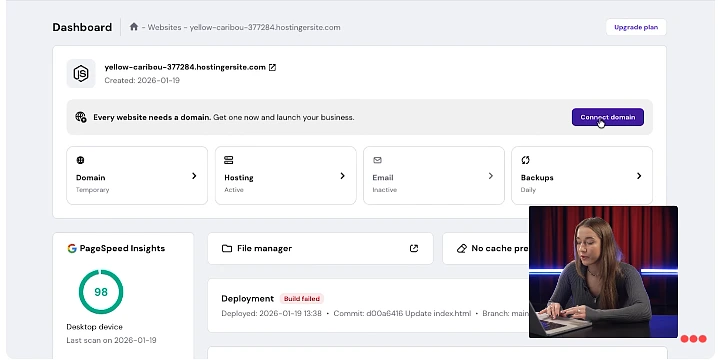
In hPanel, when you set up the Node.js app, there’s a field called “Application startup file.” If this is wrong, your app never starts at all. You’ll just get a 503 because Passenger tried to launch nothing.
The startup file is your entry point the file that, when executed, starts the HTTP server. For most Express apps, that’s app.js, index.js, or server.js. For Next.js, you don’t actually need this in the traditional sense (more on that below). For NestJS, it’s usually dist/main.js after build.
A common mistake: people put src/app.js here when their actual deployable entry point is the compiled dist/app.js. If you’re using TypeScript, your startup file is whatever your tsc build outputs, not the .ts source. Build first, then point Hostinger at the build output.
For Next.js specifically, the right setup is to install Next as a dependency, set the startup file to a custom server script (or leave it blank and use next start via the npm start script), and make sure npm run build has been run before the app launches. The Next.js custom server docs cover the pattern if you need full control.
Your package.json and npm install – The Silent Killer
Here’s a fun one. Locally, you have node_modules/ from running npm install a hundred times. Everything’s there. On Hostinger, after you upload your project, you click “Run NPM Install” in hPanel and it either fails silently, installs the wrong versions, or completes but somehow your app still throws Cannot find module 'express'.
A few specific things go wrong here:
Node version mismatch. You built the app on Node 20. Hostinger’s Node.js manager is set to 16. Half your dependencies refuse to install because they require node >= 18. Check your selected Node version in hPanel before anything else. If you’re running modern packages, you almost certainly want 18 or 20, not the older defaults.
devDependencies confusion. If you’ve put things like typescript, tsx, or nodemon in dependencies instead of devDependencies, Hostinger will install them but they’ll bloat your install. Worse, if your build step relies on devDependencies and you’ve set NODE_ENV=production in the env vars (which skips devDependencies), the build silently breaks.
Missing package-lock.json. Some people add it to .gitignore or skip uploading it. Don’t. Upload package-lock.json. Without it, Hostinger’s npm install can pull slightly different versions than what you have locally, and one of those slightly different versions is going to crash your app in a way you can’t reproduce on your machine.
The order that works:
- Run
npm installlocally first. - Test the app works.
- Upload your full project including
package-lock.jsonbut excludingnode_modules/(let Hostinger build that fresh). - In hPanel, hit “Run NPM Install.”
- Then start the app.
If npm install fails on Hostinger, check the Passenger log file path you set in hPanel. The real npm error is in there. It’s almost never in the hPanel UI itself.
Environment Variables – The .env Trap
This one bites everyone. Your local .env file has your database URL, your API keys, your secret tokens. You upload your project to Hostinger and… wait, did you upload the .env? Most people don’t, because their .gitignore excludes it and they’re using Git to deploy. Even if you upload via File Manager, Hostinger’s Node.js process might not load it the way you expect.
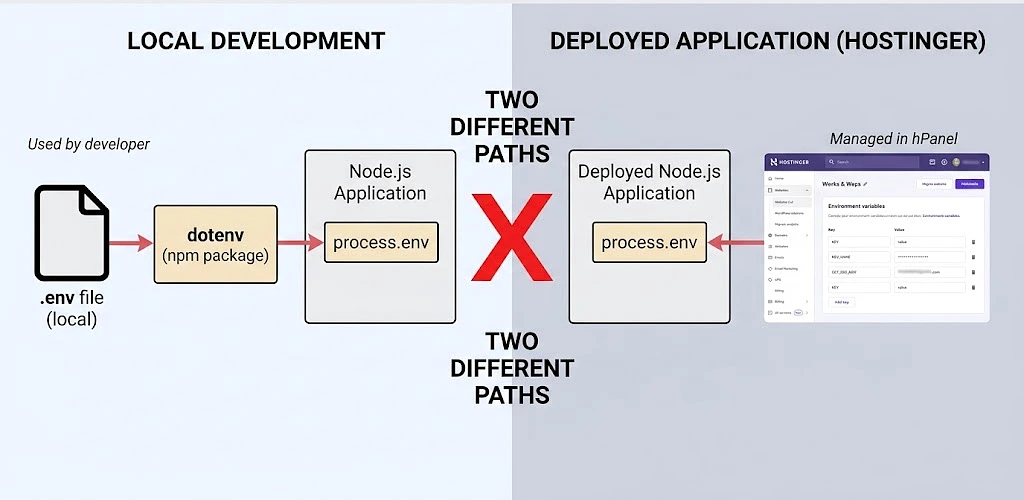
Two ways to handle this on Hostinger, and they don’t mix well:
Option A – Use hPanel’s environment variables. In your Node.js application setup, there’s an “Environment Variables” section. Add each var there. Hostinger injects them into process.env when the app starts. You don’t need dotenv at all in this case. This is the cleaner option.
Option B – Upload the .env file and use the dotenv package. If you upload .env to your project root and require('dotenv').config() at the top of your entry file, it’ll work. But you need to make sure .env actually got uploaded (File Manager hides dotfiles by default toggle “Show Hidden Files”), and that dotenv is in your dependencies, not devDependencies.
Pick one. If you do both, you’ll have hPanel env vars overriding your .env file values and you’ll spend an hour wondering why your DATABASE_URL is wrong.
Memory Limits and the Silent Kill
Hostinger’s shared Node.js plans have memory limits. Lower plans cap you somewhere around 512MB-1GB depending on the tier. If your app spikes past that during startup and modern Node apps with heavy dependency graphs often do Passenger kills the process. The app shows as “started” briefly in hPanel, then dies, and you get a 503 on the next request.
The first sign of this is your app working for one or two requests after restart, then dying. If that’s the pattern, check the Passenger log:
[ N 2026-05-12 14:32:18.4521 12345/T1 ProcessGroup.cpp:91 ]:
Application could not be started: process killed (signal 9)
Signal 9 is the kernel OOM killer. Your app got terminated because it asked for more RAM than your plan allows.
The fixes here, in order of cheapness to most-effective:
- Trim your dependencies. Run
npm prune --productionafter install to drop devDependencies you accidentally left independencies. - Limit Node’s heap explicitly with
node --max-old-space-size=400 server.jsso V8 doesn’t try to use more than it’s allowed. - If you’re using a framework like Next.js with heavy build output, consider whether you actually need Hostinger’s shared Node.js plan or whether you should be on their VPS or Cloud plans. Their VPS hosting docs cover the tiers Node apps with realistic memory footprints often need at least the basic VPS tier.
This isn’t Hostinger being bad. Shared hosting is what it is. But it’s worth understanding the limit before you spend three hours debugging “why does it die randomly.”
Static Files, .htaccess, and the Frontend Routing Problem
If you have a single-page app (React, Vue, Angular) and you’ve deployed the Node backend that serves it, you’ll often see this pattern: the homepage loads fine, but any direct URL to a sub-route returns 404.
That’s because Hostinger’s shared environment runs Apache in front of your Node.js process, and Apache is intercepting the request before it ever reaches Node. The fix is an .htaccess file in your application root that tells Apache to hand everything off to Passenger:
apache
PassengerNodejs /usr/bin/node
PassengerAppRoot /home/your-username/domains/yourdomain.com/public_html
PassengerAppType node
PassengerStartupFile server.js

RewriteEngine On
RewriteRule ^$ http://internal/ [P,L]
RewriteCond %{REQUEST_URI} !^/(public|node_modules)
RewriteRule ^(.*)$ http://internal/$1 [P,L]
This tells Apache to proxy all non-static requests to your Node process. Without it, Apache tries to serve the requested URL as a static file, doesn’t find it, and 404s.
Static assets (CSS, JS bundles, images) should still be served by Apache directly for performance that’s what the RewriteCond line does. Your build output (public/, dist/, build/ depending on your setup) sits in a folder Apache can read directly, and only API routes and dynamic pages hit Node.