
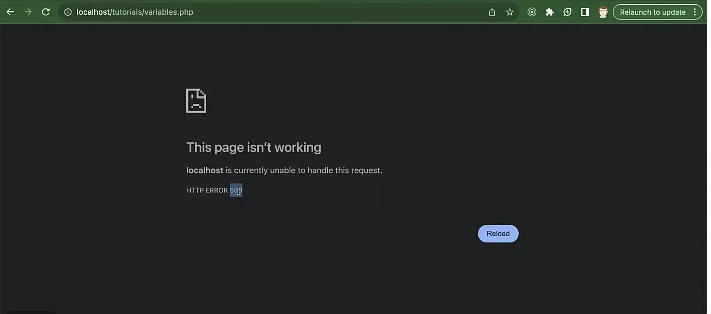
To fix a PHP error, you must first reveal it. By default, most servers hide errors for security. You need to enable error reporting in your script or check the server’s internal error logs to find the specific file and line number causing the crash. Once the “silent treatment” ends, the fix is usually a simple syntax correction or a missing file.
Steps to Resolve the Error:
- Enable Error Reporting: Force PHP to display the error on the screen.
- Check Error Logs: If the screen stays blank, look at the
error_logfile in your root directory or the server’s Apache/Nginx logs. - Identify the Type:
- Parse/Syntax Error: You missed a
;or a}. - Fatal Error: You called a function or file that doesn’t exist.
- Warning: Something is wrong, but the script keeps running.
- Parse/Syntax Error: You missed a
- Fix the Code: Update the specific line mentioned in the error.
- Disable Reporting: Once fixed, turn error display off for your live visitors.
Quick Methods to Display PHP Errors:
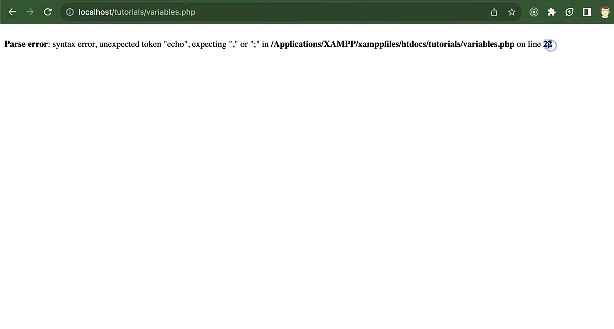
- Via PHP Script: Add this code at the top of your file to immediately see errors:php
<?php ini_set('display_errors', 1); ini_set('display_startup_errors', 1); error_reporting(E_ALL); ?> - Via
php.ini: Locate your PHP configuration file and set:display_errors = Onerror_reporting = E_ALL
(Requires server restart, e.g., Apache). - Via
.htaccess(Apache): Addphp_flag display_errors on.
What PHP Is Doing When You Access Your Site
When someone opens your website, the server runs PHP files before showing anything in the browser. PHP loads core files, then themes, then plugins. If PHP finds code it cannot understand or execute, it stops immediately and shows an error.
In simple terms, PHP follows instructions line by line. If even one line is wrong, everything stops.
PHP Version Errors Explained with Code
A very common coding issue happens when your server uses a newer PHP version than your site supports.
For example, this function worked in older PHP versions:
each($array);
In newer PHP versions, this function is removed. When PHP sees this line, it throws a fatal error like:
Fatal error: Uncaught Error: Call to undefined function each()
Why This Happens
Your plugin or theme still uses old PHP code, but your hosting server upgraded PHP. PHP no longer recognizes the function, so it crashes.
How to Fix It
You can either:
- Update the plugin or theme so it uses modern PHP functions
- Or switch your PHP version from your hosting control panel to an older supported version
Plugin Errors with Real PHP Example
Plugins load automatically when your site starts. If one plugin has broken code, the whole site fails.
Here is an example of bad plugin code:
add_action('init', my_custom_function());
What Wrong Here
The function runs immediately instead of waiting for WordPress to load. This can cause PHP errors like:
Fatal error: Call to undefined function my_custom_function()
Correct Code Version
add_action('init', 'my_custom_function');
Why This Fix Works
Now PHP waits until WordPress is ready before calling the function. This small coding mistake causes many site crashes.
Theme Errors Caused by Syntax Mistakes
Even one missing character can break your entire website.
Example of broken PHP code in a theme file:
if ($user_logged_in == true {
    echo "Welcome!";
}
The Problem
The closing parenthesis is missing.
PHP Error You’ll See
Parse error: syntax error, unexpected '{'
Fixed Code
if ($user_logged_in == true) {
    echo "Welcome!";
}
PHP is very strict. It does not guess what you meant. One small typo = broken site.
White Screen of Death and How to See the Error
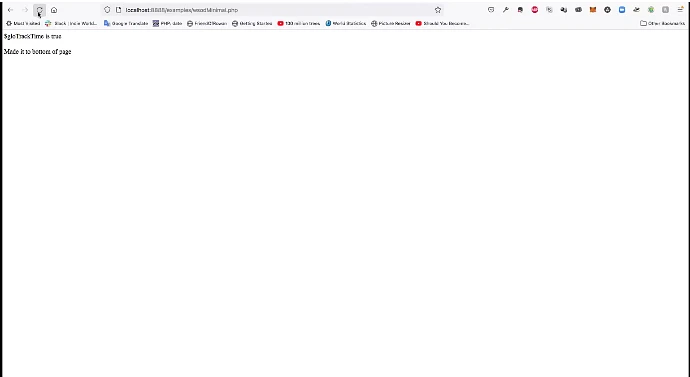
Sometimes you see a blank page with no error message. That means PHP errors are hidden.
Enable PHP Error Display (Coding Method)
Add this code to your configuration file:
define('WP_DEBUG', true);
define('WP_DEBUG_DISPLAY', true);
What This Does
It tells PHP to show errors instead of hiding them. Once enabled, reload your site and you’ll see the exact file and line number causing the problem.
File Permission Errors Explained with Server Logic
PHP must have permission to read files. If permissions are wrong, PHP cannot load required files.
Example error:
Warning: require_once(): failed to open stream
Correct Permissions
- Files:
644 - Folders:
755
Why This Matters
PHP runs on the server as a user. If that user does not have permission, PHP fails even if the code is correct.
Memory Limit Errors with Code Explanation
Some PHP errors happen because your site runs out of memory.
Error example:
Fatal error: Allowed memory size exhausted
Increase PHP Memory Using Code
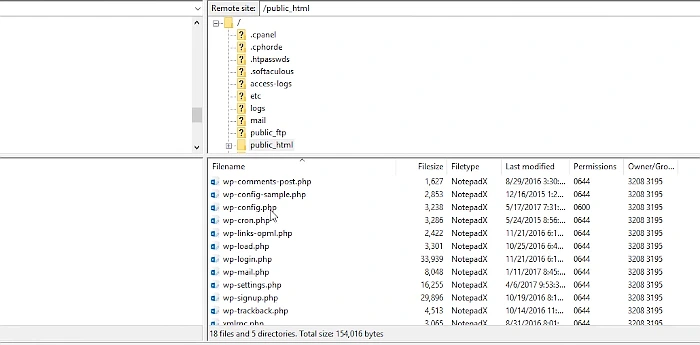
Add this line to your config file:
define('WP_MEMORY_LIMIT', '256M');
What This Does
It allows PHP to use more memory, which helps large sites, heavy plugins, or page builders.
Corrupted Core Files and How PHP Reacts
When core files are missing or broken, PHP cannot include them.
Example error:
Fatal error: require() failed opening required file
Why PHP Fails
PHP uses require() to load core files. If the file is missing, PHP stops immediately.
Safe Fix
Reupload fresh core files from the official source without touching your content folder.