



Everything in this list happened on one PC in one evening, right after a nobara-sync update:
- Steam game recording stopped on its own.
- the internet connection dropped several times.
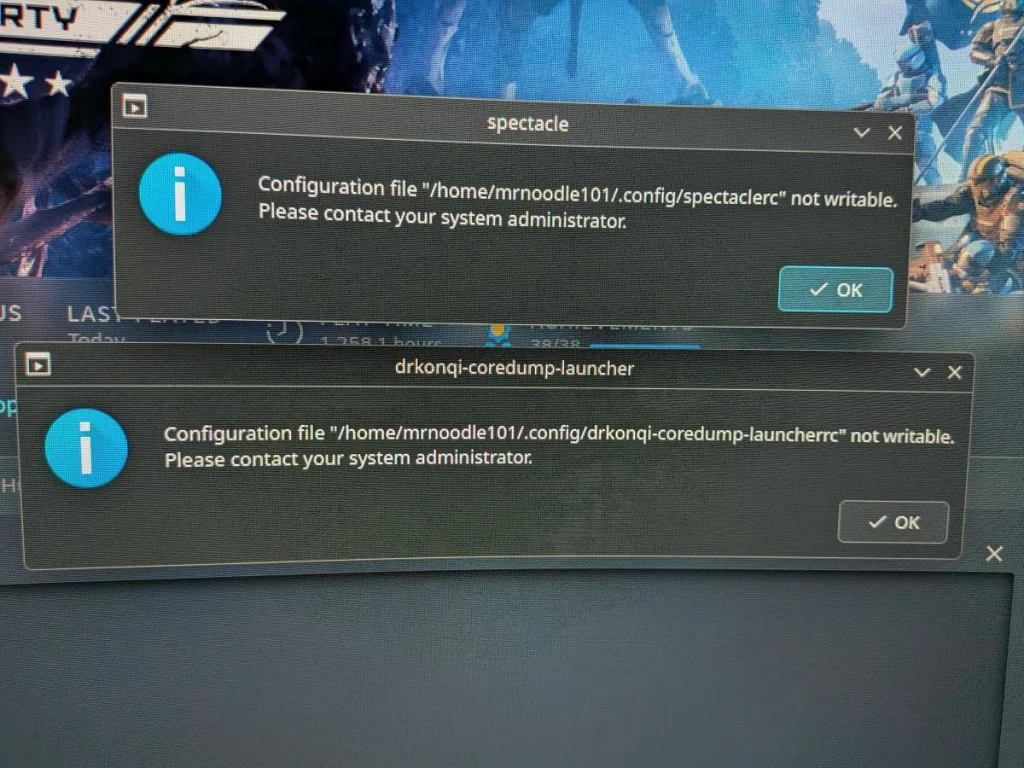
- a game crashed, and restarting it brought up a
drkonqi-coredump-launcherpopup saying a configuration file was “not writable”. - pressing Print Screen brought up the same popup for Spectacle, then a notification that launching Spectacle had failed.
- the Restart button showed the same error and did nothing.
- a hard power-off and power-on fixed everything.
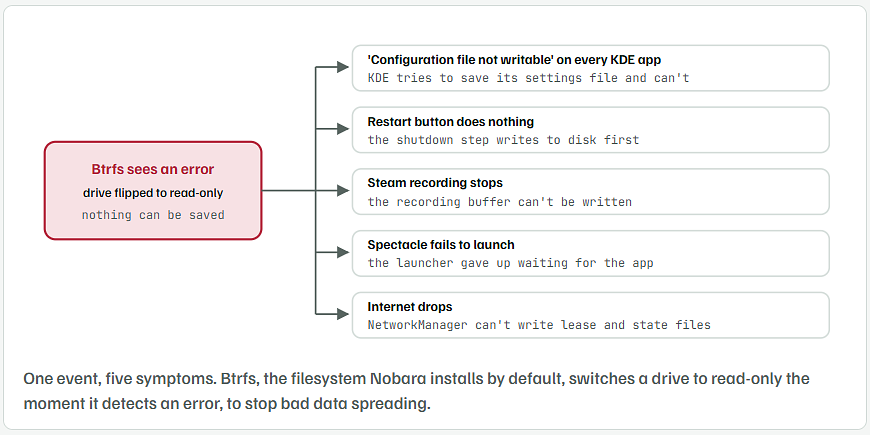
These are not five problems. They are one. The drive that holds your home folder switched itself to read-only, so nothing on the PC could save a file. Every app that tried to write something failed in its own way. A hard power-off forced a fresh mount, which is why it works again. The job now is to find out why the drive flipped, because it will do it again if the cause is still there.

What the Popup Is Actually Saying
/home/mrnoodle101/.config/spectaclercis Spectacle’s settings file. Every KDE app has one ending inrc. On start, the app opens it for writing.- “not writable” means that open failed. KDE’s message assumes a permissions problem, which is why it mentions an administrator. On a home PC that’s rarely the reason.
- “Please contact your system administrator” is just the stock wording. You are the administrator.
- The second screenshot, “Launching Spectacle (Failed), did not receive a reply”, is the follow-on. The app hung on the broken write, so the launcher timed out waiting for it.

Why Btrfs Switches a Drive to Read-Only
Btrfs checks everything it writes. If a block comes back wrong, it stops all writing on that drive rather than risk corrupting more. The usual causes, in order of how often they turn up, are a failing SSD, faulty RAM, a loose cable, or a drive that ran out of space mid-update.
- Failing SSD or HDD. The most common. The drive returns bad data on read or fails a write.
- Bad RAM. Data gets corrupted in memory before it reaches the disk. A Manjaro user with this exact popup traced it to one bad RAM stick after the SSD tested healthy.
- Loose or failing SATA or NVMe connection. Shows up as sudden read errors that come and go.
- Disk full during an update. Btrfs can lock up when metadata space runs out. A big
nobara-syncupdate is exactly when that happens. - A kernel bug in the update itself. Rare, but a new kernel can misbehave with a specific drive.
An update is often when this first shows, not because the update broke the disk, but because an update writes gigabytes at once and hits the weak spot.
Check Whether the Drive Is Read-Only Right Now
Open Konsole and paste this. It works on Nobara the same as any other Linux, since these are standard commands, not Nobara ones.
mount | grep -E ' / | /home '
What a healthy PC shows
/dev/nvme0n1p3 on / type btrfs (rw,relatime,...)
/dev/nvme0n1p3 on /home type btrfs (rw,relatime,...)
- Look for
rwinside the brackets. That means read-write, which is normal. - If you see
roinstead, the drive is read-only at this moment. Skip to Step 4.
Also confirm your home folder lets you write, with no popups involved:
touch ~/test-write && echo "write OK" && rm ~/test-write
What a healthy PC shows
write OK
Read the Log From the Evening It Happened
Linux keeps a log of every boot. This pulls the errors from the boot before the current one, which is the session where the popups appeared.
journalctl -b -1 -p err --no-pager | grep -iE 'btrfs|nvme|ata|I/O error|read-only' | tail -40
- If you’ve restarted more than once since, change
-b -1to-b -2or-b -3until you find the session with errors. - A line like
BTRFS error ... forced readonlyconfirms the diagnosis. - Lines mentioning
nvme0n1I/O error,ata1: SErrororbad swap file entrypoint at the drive, the cable or the RAM respectively. - Keep this output. If you ask for help on the Nobara forum or Discord, it’s the first thing anyone will ask for.
Test the Drive, the Filesystem and the RAM
Ask Btrfs How Many Errors It Has Counted
sudo btrfs device stats /
What a healthy PC shows
[/dev/nvme0n1p3].write_io_errs    0
[/dev/nvme0n1p3].read_io_errs     0
[/dev/nvme0n1p3].flush_io_errs    0
[/dev/nvme0n1p3].corruption_errs  0
[/dev/nvme0n1p3].generation_errs  0
- All zeros is good. Anything above zero means the drive has already failed Btrfs at least once.
- These counters never reset on their own, so a number here tells you it has happened before.
Run a Scrub to Check Every Block
sudo btrfs scrub start /
sudo btrfs scrub status /
- A scrub reads the whole drive and verifies every checksum. On a 1 TB NVMe it takes a few minutes. Run
statusagain until it saysfinished. - 0 errors found is what you want. Any
csumorreaderrors mean bad data on the drive.
Check the Drive’s Own Health Report
sudo dnf install smartmontools
sudo smartctl -a /dev/nvme0 | grep -iE 'critical|media|percentage|available spare'
What a healthy PC shows
Critical Warning:                   0x00
Available Spare:                    100%
Percentage Used:                    3%
Media and Data Integrity Errors:    0
- Find your drive name with
lsblkif it isn’tnvme0. A SATA drive is usually/dev/sda. - Media and Data Integrity Errors above 0, or Critical Warning not
0x00, means back up now and plan to replace the drive.
Check Free Space
sudo btrfs filesystem usage / | head -12
- Look at
Free (estimated). Under about 10 GB on a Btrfs system is risky, and a big update can tip it over.
Test the RAM If the Drive Passes
- Reboot, and at the GRUB menu pick Memory test if it’s listed. If not, download MemTest86 to a USB stick and boot from it.
- Let it run at least one full pass. One red line is enough to call the stick bad.
- With two sticks, test them one at a time to find the faulty one.
What to Do While the Drive Is Read-Only
- Don’t keep clicking OK and working. Nothing you do is being saved.
- Copy anything you care about to a USB stick first. Reads still work when writes don’t, so this is the safest moment to back up.
- Then restart from the terminal, since the Restart button needs to write to disk and will fail:
systemctl reboot
- If that hangs too, hold the power button. That’s what you did, and it was the right call. Btrfs will not let a drive be remounted read-write after an error, so a reboot is the only way back.
- On the way back up, Nobara runs a check and mounts the drive fresh. Then run Steps 2 and 3 straight away while the log is recent.
What the Results Tell You to Do Next
| What you found | Most likely cause | What to do |
|---|---|---|
| Device stats all zero, scrub clean, SMART clean, memtest clean | A one-off during the update, or a kernel bug | Keep using it. Run btrfs device stats / once a week for a month. If it stays at zero, move on. |
| Media errors in SMART, or scrub finds read errors | The drive is failing | Back up today. Replace the drive. Reinstall Nobara or restore from backup. |
| Corruption errors in Btrfs but SMART clean | RAM or a cable | Reseat the drive cable or NVMe stick, then run memtest for a full pass. |
| Free space under 10 GB | Disk filled during the update | Clear space: sudo dnf clean all, delete old Steam shader caches, empty the trash. Then rerun the update. |
| Log shows errors only right after the kernel update | New kernel and your drive disagree | At the GRUB menu, boot the previous kernel. If the errors stop, report it on the Nobara forum with your log. |
Keep It From Coming Back
- Check the counters after every
nobara-sync. One line, five seconds:sudo btrfs device stats /. - Keep 15 to 20 GB free on the drive at all times. Btrfs needs room for metadata.
- Let Nobara finish its update before you game. Recording, a game crash and a big update all writing at once is the exact moment a weak drive gives up.
- Back up your home folder somewhere, even a USB drive once a month. A read-only lockout is Btrfs protecting your data. It’s also a warning that the next failure may not be so gentle.