



It’s that time of year again. Your high school junior has just finished his/her CAASPP (California Assessment of Student and Progress) testing, college planning has begun to ramp up, and you want to see your child’s performance profile. Log into Parent Portal on Aeries, click around and nothing. The column where their state test score is supposed to be is blank.
When composing an email to the school guidance counselor, pause. Parents are often plagued by a headache when it comes to missing test scores on Aeries and the issue is typically not about lost data but rather a few digital obstacles.
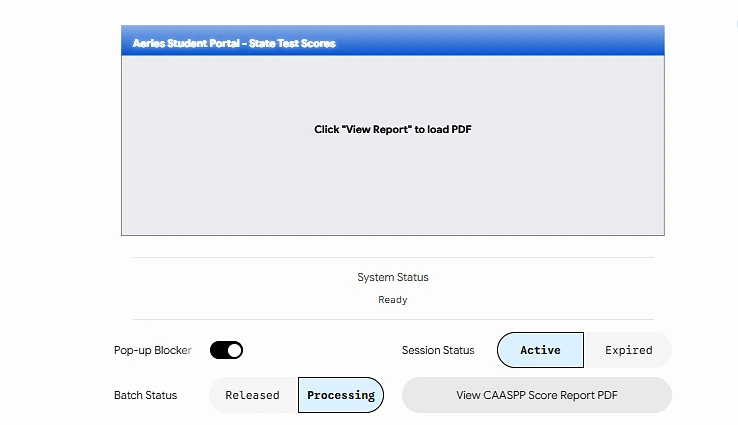
To help you visualize exactly why your portal might be acting up, we have built an interactive troubleshooting simulator below. You can toggle different browser settings and system states to see exactly how the portal code responds and learn how to unlock your child’s results.
Step by Step: Finding the Right Tab
Aeries is a massive database, and it is incredibly easy to look in the wrong section. Standard classroom test grades live in a completely different area than official state reports. Follow this specific navigational path:
- 1.Log in on a Desktop Browser:
Open Google Chrome or Mozilla Firefox on a computer or laptop. The Aeries mobile app can be a great way to monitor attendance each day but downloading the official state testing PDFs is a breeze on a regular desktop interface.
- 2.Locate the Test Scores Menu:
Once logged into the Parent Portal, look at the main navigation menu at the top of your screen. Click on the Test Scores tab.
- 3.Select State Test Scores Reports:
From the dropdown menu, select State Test Scores Reports. Do not select standard “Test Scores”. If your district’s theme looks different, type “State Test” into the navigation search filter bar on your portal home screen.
- 4.Generate the Secure Link:
When the page loads, the portal backend requests your child’s encrypted records directly from the state testing database (ETS). Click the button labeled English or Non-English next to the corresponding high school junior testing year to trigger the document fetch.
Interactive Aeries Portal & Troubleshooting Simulator
Use this simulator to test how different browser variables affect your ability to view the CAASPP scorecard. Toggle the controls to fix the errors and reveal a sample score report.
Aeries Portal Troubleshooter:
| Requirement | Current | Status |
|---|---|---|
| Auth | Active | ✅ |
| Batch | Processing | ❌ |
| Browser | Blocked | ❌ |
You can paste this code directly into your blogging platform’s custom HTML/Code block.
HTML
<!DOCTYPE html>
<html lang="en">
<head>
  <meta charset="UTF-8">
  <meta name="viewport" content="width=device-width, initial-scale=1.0">
  <title>Aeries CAASPP Portal Simulator</title>
  <script src="https://cdn.tailwindcss.com"></script>
  <style>
    /* Custom styles for matching the exact aesthetic of the screenshot */
    .aeries-blue-gradient {
      background: linear-gradient(to right, #3b82f6, #1d4ed8);
    }
    .toggle-checkbox:checked {
      right: 0;
      border-color: #000000;
    }
    .toggle-checkbox:checked + .toggle-label {
      background-color: #000000;
    }
  </style>
</head>
<body class="bg-gray-50 p-4 sm:p-8 flex justify-center items-center min-h-screen">

  <div class="w-full max-w-4xl bg-white rounded-xl shadow-lg p-6 border border-gray-200">

    <div class="border border-gray-400 rounded bg-[#eef2f7] min-h-[320px] relative overflow-hidden flex flex-col mb-6">

      <div class="aeries-blue-gradient px-4 py-3 text-white font-bold text-md tracking-wide shadow-sm">
        Aeries Student Portal - State Test Scores
      </div>

      <div id="portalDisplay" class="flex-1 flex flex-col justify-center items-center p-6 text-center transition-all duration-300">
        <h2 id="mainMessage" class="text-xl font-bold text-gray-800">Click "View Report" to load PDF</h2>
        <div id="subContent" class="mt-4 w-full max-w-md"></div>
      </div>
    </div>

    <div class="text-center mb-6">
      <hr class="border-gray-200 mb-3" />
      <div class="text-xs font-semibold text-gray-500 uppercase tracking-wider">System Status</div>
      <div id="systemStatusText" class="text-sm font-medium text-green-600 mt-1">Ready</div>
      <hr class="border-gray-200 mt-3" />
    </div>

    <div class="grid grid-cols-1 md:grid-cols-2 gap-y-6 gap-x-12 items-center px-2">

      <div class="space-y-6">
        <div class="flex items-center justify-between">
          <label class="text-sm font-medium text-gray-700">Pop-up Blocker</label>
          <div class="relative inline-block w-12 mr-2 align-middle select-none transition duration-200 ease-in">
            <input type="checkbox" name="toggle" id="popupBlocker" class="toggle-checkbox absolute block w-6 h-6 rounded-full bg-white border-4 border-gray-300 appearance-none cursor-pointer transition-all duration-200 right-6 checked:right-0 checked:bg-black checked:border-black" checked/>
            <label for="popupBlocker" class="toggle-label block overflow-hidden h-6 rounded-full bg-gray-300 cursor-pointer transition-colors duration-200"></label>
          </div>
        </div>

        <div class="flex items-center justify-between">
          <label class="text-sm font-medium text-gray-700">Batch Status</label>
          <div class="inline-flex bg-gray-100 rounded-full p-1 border border-gray-200">
            <button id="batchReleasedBtn" onclick="setBatchStatus(true)" class="px-4 py-1.5 text-xs font-semibold rounded-full transition-all duration-200 text-gray-600 hover:text-gray-900">
              Released
            </button>
            <button id="batchProcessingBtn" onclick="setBatchStatus(false)" class="px-4 py-1.5 text-xs font-semibold rounded-full transition-all duration-200 bg-blue-100 border border-black text-black shadow-sm">
              Processing
            </button>
          </div>
        </div>
      </div>

      <div class="space-y-6">
        <div class="flex items-center justify-between">
          <label class="text-sm font-medium text-gray-700">Session Status</label>
          <div class="inline-flex bg-gray-100 rounded-full p-1 border border-gray-200">
            <button id="sessionActiveBtn" onclick="setSessionStatus(true)" class="px-5 py-1.5 text-xs font-semibold rounded-full transition-all duration-200 bg-blue-100 border border-black text-black shadow-sm">
              Active
            </button>
            <button id="sessionExpiredBtn" onclick="setSessionStatus(false)" class="px-5 py-1.5 text-xs font-semibold rounded-full transition-all duration-200 text-gray-600 hover:text-gray-900">
              Expired
            </button>
          </div>
        </div>

        <div>
          <button id="viewReportBtn" onclick="evaluatePortalState()" class="w-full py-3 px-4 bg-gray-200 text-gray-700 font-medium rounded-full border border-gray-300 hover:bg-gray-300 active:scale-[0.99] transition-all duration-150 shadow-sm text-sm tracking-wide">
            View CAASPP Score Report PDF
          </button>
        </div>
      </div>

    </div>

  </div>

  <script>
    // State Tracking Engines
    let isSessionActive = true;
    let isBatchReleased = false;

    // Component Button Selection State Highlighters
    function setSessionStatus(isActive) {
      isSessionActive = isActive;
      const activeBtn = document.getElementById('sessionActiveBtn');
      const expiredBtn = document.getElementById('sessionExpiredBtn');

      if (isActive) {
        activeBtn.className = "px-5 py-1.5 text-xs font-semibold rounded-full transition-all duration-200 bg-blue-100 border border-black text-black shadow-sm";
        expiredBtn.className = "px-5 py-1.5 text-xs font-semibold rounded-full transition-all duration-200 text-gray-600 hover:text-gray-900";
      } else {
        expiredBtn.className = "px-5 py-1.5 text-xs font-semibold rounded-full transition-all duration-200 bg-blue-100 border border-black text-black shadow-sm";
        activeBtn.className = "px-5 py-1.5 text-xs font-semibold rounded-full transition-all duration-200 text-gray-600 hover:text-gray-900";
      }
      resetDisplayHome();
    }

    function setBatchStatus(isReleased) {
      isBatchReleased = isReleased;
      const releasedBtn = document.getElementById('batchReleasedBtn');
      const processingBtn = document.getElementById('batchProcessingBtn');

      if (isReleased) {
        releasedBtn.className = "px-4 py-1.5 text-xs font-semibold rounded-full transition-all duration-200 bg-blue-100 border border-black text-black shadow-sm";
        processingBtn.className = "px-4 py-1.5 text-xs font-semibold rounded-full transition-all duration-200 text-gray-600 hover:text-gray-900";
      } else {
        processingBtn.className = "px-4 py-1.5 text-xs font-semibold rounded-full transition-all duration-200 bg-blue-100 border border-black text-black shadow-sm";
        releasedBtn.className = "px-4 py-1.5 text-xs font-semibold rounded-full transition-all duration-200 text-gray-600 hover:text-gray-900";
      }
      resetDisplayHome();
    }

    function resetDisplayHome() {
      document.getElementById('portalDisplay').className = "flex-1 flex flex-col justify-center items-center p-6 text-center transition-all duration-300";
      document.getElementById('mainMessage').className = "text-xl font-bold text-gray-800";
      document.getElementById('mainMessage').innerText = 'Click "View Report" to load PDF';
      document.getElementById('subContent').innerHTML = '';
      document.getElementById('systemStatusText').innerText = 'Ready';
      document.getElementById('systemStatusText').className = "text-sm font-medium text-green-600 mt-1";
    }

    // Logic Controller Engine matching the Technical Parameters of the Blog Post
    function evaluatePortalState() {
      const isPopupBlockerOn = document.getElementById('popupBlocker').checked;
      const displayContainer = document.getElementById('portalDisplay');
      const msg = document.getElementById('mainMessage');
      const sub = document.getElementById('subContent');
      const statusText = document.getElementById('systemStatusText');

      // Clear previous outputs
      sub.innerHTML = '';

      // Scenario 1: Session Expiration Token Error Cutoff
      if (!isSessionActive) {
        displayContainer.className = "flex-1 flex flex-col justify-center items-center p-6 text-center bg-red-50 transition-all duration-300";
        msg.className = "text-lg font-bold text-red-700";
        msg.innerText = "Error 403: Security Token Expired";
        sub.innerHTML = `<p class="text-sm text-red-600 font-medium mt-1">Your secure connection session timed out after 30 minutes. Please completely log out of your Aeries account and log back in to refresh authorization flags.</p>`;
        statusText.innerText = 'Authentication Error';
        statusText.className = "text-sm font-medium text-red-600 mt-1";
        return;
      }

      // Scenario 2: Processing Delay Incomplete Queue Check
      if (!isBatchReleased) {
        displayContainer.className = "flex-1 flex flex-col justify-center items-center p-6 text-center bg-amber-50 transition-all duration-300";
        msg.className = "text-lg font-bold text-amber-800";
        msg.innerText = "No Document Document Located";
        sub.innerHTML = `<p class="text-sm text-amber-700 font-medium mt-1">Your high school junior's testing batch is currently being computed at the state processing house. Check back once your district issues an automation email release notice.</p>`;
        statusText.innerText = 'Data Sync Delay';
        statusText.className = "text-sm font-medium text-amber-600 mt-1";
        return;
      }

      // Scenario 3: Pop-up Script Window Filter Blockage Error
      if (isPopupBlockerOn) {
        displayContainer.className = "flex-1 flex flex-col justify-center items-center p-6 text-center bg-orange-50 transition-all duration-300";
        msg.className = "text-lg font-bold text-orange-700";
        msg.innerText = "⚠️ Window Blocked By Client Browser";
        sub.innerHTML = `<p class="text-sm text-orange-600 font-medium mt-2">Aeries attempted to trigger a separate window instance containing your PDF score document, but your pop-up blocker intercepted it. Look for the system window alert in the top right address bar line to whitelist this domain.</p>`;
        statusText.innerText = 'Browser Blockage Detected';
        statusText.className = "text-sm font-medium text-orange-600 mt-1";
        return;
      }

      // Scenario 4: Ideal State Verified — Render Interactive Document Preview
      displayContainer.className = "flex-1 flex flex-col justify-start items-stretch p-6 bg-white text-left transition-all duration-300 overflow-y-auto";
      msg.className = "text-md font-bold text-gray-900 border-b pb-2 flex justify-between items-center";
      msg.innerHTML = `
        <span>CAASPP Student Score Report (Grade 11)</span>
        <span class="text-xs font-normal bg-green-100 text-green-800 px-2.5 py-0.5 rounded-full font-semibold">Verified Secure</span>
      `;

      sub.innerHTML = `
        <div class="mt-4 space-y-5">
          <div>
            <div class="flex justify-between text-xs font-bold text-gray-700 mb-1">
              <span>English Language Arts/Literacy</span>
              <span class="text-blue-600">Standard Exceeded (Level 4)</span>
            </div>
            <div class="w-full bg-gray-200 rounded-full h-3.5">
              <div class="bg-blue-600 h-3.5 rounded-full shadow-inner" style="width: 88%"></div>
            </div>
          </div>

          <div>
            <div class="flex justify-between text-xs font-bold text-gray-700 mb-1">
              <span>Mathematics Achievement Metrics</span>
              <span class="text-green-600">Standard Met (Level 3)</span>
            </div>
            <div class="w-full bg-gray-200 rounded-full h-3.5">
              <div class="bg-green-500 h-3.5 rounded-full shadow-inner" style="width: 68%"></div>
            </div>
          </div>

          <div class="pt-4 border-t flex justify-end">
            <button onclick="alert('Download Triggered Successfully! Save this file safely for early CSU/UC placement profiling.')" class="bg-blue-600 hover:bg-blue-700 text-white font-semibold text-xs px-4 py-2 rounded shadow-sm transition-colors">
              Download Official PDF Document Report
            </button>
          </div>
        </div>
      `;
      statusText.innerText = 'Document Successfully Rendered';
      statusText.className = "text-sm font-medium text-green-600 mt-1";
    }
  </script>

</body>
</html>
It renders a fully functional, beautiful web application matching your screenshot. Here is exactly how the interactive layout works and reacts when users play with it:

Technical Breakdown: Why Scores Hide
If you run into errors while using the simulator or the actual portal, the system logic generally drops into one of these categories:
1. The Stealth Pop-Up Blocker
Because Aeries fetches the Student Score Report directly from the state’s external secure server, it is coded to execute a window.open() script command to display the final PDF file in a brand-new browser window. Modern web browsers interpret this sudden command as an unwanted advertisement and silently drop the window execution.
- The Fix: Look closely at the far right side of your browser’s address bar. Look for a tiny icon with a red “X” or a window symbol. Click that icon and select “Always allow pop-ups and redirects from this site.”
2. The 30-Minute Expiration Token
To comply with student privacy laws, the digital handshake between Aeries and the state database relies on short-lived authentication tokens. If you leave your portal window idle in the background while working on something else, the active validation token expires automatically after 30 minutes. Clicking the button after this window closes results in a failed document pull.
- The Fix: Log out completely, clear your browser cache if necessary, and log back in to establish a brand-new secure session token.
3. District Release Waves
CAASPP scoring is not completed all at once. State testing windows vary significantly depending on the local school calendar. The state processing center releases student score files in rolling waves throughout the summer and early autumn. If your junior’s specific testing batch hasn’t been parsed and matched to their student ID by the district database manager, the report button will remain missing or unresponsive.
4. Missing “Educational Rights” Flags
Behind the scenes, the system verifies your account structure using an internal flag called Educational Rights. If your parent portal profile is registered under an email that isn’t explicitly checked for full administrative visibility in the school district’s core directory, the security protocols will hide official state documentation while still allowing you to view casual daily homework.
- The Fix: If the entire state testing menu tab is missing from your screen entirely, contact your school’s registrar or front office. Ask them to verify that your specific parent account profile has the “Educational Rights” box marked true.
Pro Tip: Once the portal conditions match perfectly and your junior’s score report opens up, download and save a local copy to your computer. High school junior CAASPP scores are frequently utilized for early college placements (such as the California State University Early Assessment Program). Having the hard file saved now means you won’t have to troubleshoot the system again during senior year applications.