

SSH (Secure Shell) is a network protocol that allows you to securely connect to and control a remote computer over an unsecurenetwork. It encrypts all communication between your local machine and the remote server, protecting your data from eavesdropping and tampering.
SSH is used for:
- Logging into remote Linux/Unix servers.
- Transferring files securely (
scp,sftp). - Tunneling and port forwarding.
- Running automated scripts and deployments.
- Managing cloud servers (AWS, GCP, Azure, DigitalOcean).
What Is SSH Public Key Authentication?
SSH Public Key Authentication is a method of logging into a remote server without using a password. Instead, it uses a mathematically linked key pair:
| Key | Location | Purpose |
|---|---|---|
| Private Key | Your local machine | Kept secret — proves your identity |
| Public Key | Remote server | Shared openly — validates your private key |
How It Works The Handshake Process
Local Machine                        Remote Server
─────────────                        ─────────────
1. "I want to connect"        ──►    Checks authorized_keys file
2. Server sends a challenge   ◄──    Encrypted with your public key
3. Local decrypts challenge   ──►    Using private key
4. Server verifies match      ◄──    Access granted no password needed
This process is called a cryptographic handshake. The private key never leaves your machine, making it extremely secure.
Why Use SSH Public Key Authentication?
| Feature | Password Login | Key-Based Login |
|---|---|---|
| Security | Vulnerable to brute-force | Virtually uncrackable |
| Convenience | Type password every time | Login instantly |
| Automation | Requires human input | Works in scripts & pipelines |
| Phishing Risk | High | None |
| Recommended For | Basic use | Production servers, CI/CD, DevOps |
Prerequisites
Before you begin, make sure you have the following:
- A local machine running Linux, macOS, or Windows (with WSL, Git Bash, or PuTTY)
- A remote server running Linux with SSH installed
- A user account on the remote server
- Basic familiarity with the terminal / command line
Setting Up SSH Key Authentication
Step 1: Generate an SSH Key Pair on Your Local Machine
The first step is to create your key pair on your local machine not the server.
Open your terminal and run:
bash
ssh-keygen -t ed25519 -C "your_email@example.com"What this means:
-t ed25519Uses the modern Ed25519 algorithm (faster and more secure than RSA).-CAdds a comment label (usually your email) to identify the key.
If your system does not support Ed25519, use RSA instead:
bash
ssh-keygen -t rsa -b 4096 -C "your_email@example.com"You will see the following prompts:
File Location:
Enter file in which to save the key (/home/youruser/.ssh/id_ed25519):Press Enter to accept the default. You can specify a custom name if you manage multiple keys.
Passphrase:
Enter passphrase (empty for no passphrase):A passphrase encrypts your private key for extra protection. It is highly recommended. Press Enter twice to skip if preferred.
After generation, two files are created:
~/.ssh/id_ed25519          ←Private Key — NEVER share this
~/.ssh/id_ed25519.pub      ←Public Key  — This goes to the server
Step 2: View and Verify Your Public Key
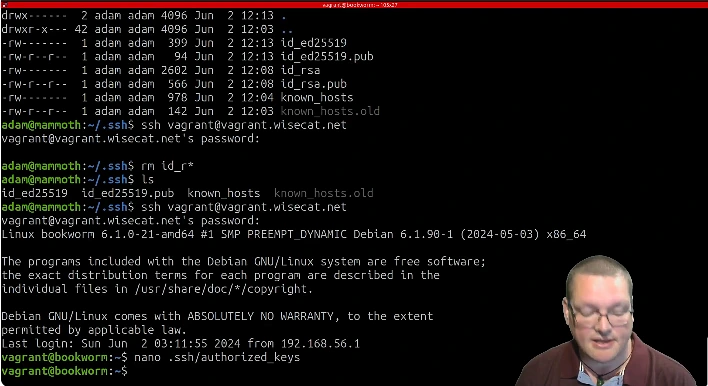
Before copying the key to the server, verify it was created correctly:
bash
cat ~/.ssh/id_ed25519.pubThe output will look similar to this:
ssh-ed25519 AAAAC3NzaC1lZDI1NTE5AAAAIGz5n7+QkHrm2bBMkL93fXqz3bNp8yTkR your_email@example.comCopy this entire line you will need it in the next step.
Step 3: Copy the Public Key to the Remote Server
You have three methods available. Choose whichever works for your environment:
Using ssh-copy-id (Recommended)
This is the easiest and most reliable method:
bash
ssh-copy-id username@remote_server_ipExample:
bash
ssh-copy-id john@203.0.113.50- Enter your server password when prompted
- The command automatically appends your public key to
~/.ssh/authorized_keyson the server - You will see a confirmation message when done
Manual Copy (When ssh-copy-id Is Unavailable)
First, log into the server using your password:
bash
ssh username@remote_server_ipThen, run these commands on the server:
bash
mkdir -p ~/.ssh
nano ~/.ssh/authorized_keys

Paste your public key on a new line. Press Ctrl+X, then Y, then Enter to save and exit.
One-Line Pipe Command
If you prefer a single command from your local machine:
bash
cat ~/.ssh/id_ed25519.pub | ssh username@remote_server_ip \
"mkdir -p ~/.ssh && cat >> ~/.ssh/authorized_keys"
This pipes your public key directly into the server’s authorized_keys file in one step.
Step 4: Set Correct File Permissions on the Remote Server
SSH is extremely strict about file permissions. If permissions are too open, SSH will refuse to use the keys silently.
Log into the server and run:
bash
chmod 700 ~/.ssh
chmod 600 ~/.ssh/authorized_keys
Also make sure the home directory is not writable by others:
bash
chmod 755 ~Permission Breakdown:
| Path | Permission | What It Means |
|---|---|---|
~/ (home dir) | 755 | Others can read but not write |
~/.ssh/ | 700 | Only owner has full access |
~/.ssh/authorized_keys | 600 | Only owner can read and write |
Step 5: Test the SSH Key Authentication
Now go back to your local machine and test the connection:
bash
ssh username@remote_server_ipWith a custom key file path:
bash
ssh -i ~/.ssh/id_ed25519 username@remote_server_ipSuccessful output will look like:
Welcome to Ubuntu 22.04.3 LTS (GNU/Linux 5.15.0-82-generic x86_64)
Last login: Mon Apr 7 10:23:14 2026 from 192.168.1.5
john@myserver:~$
You are now logged in without entering a server password. If you set a passphrase, only that will be asked.
Advance Configuration
Step 6: Configure SSH Shortcuts Using Config File
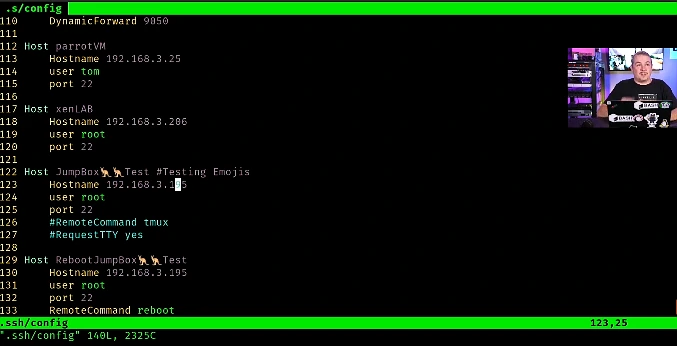
Typing the full SSH command every time is tedious. Set up a shortcut using the SSH config file:
bash
nano ~/.ssh/configAdd the following block:
Host myserver
    HostName 203.0.113.50
    User john
    IdentityFile ~/.ssh/id_ed25519
    Port 22
Save and exit. Now connect with just:
bash
ssh myserverYou can add as many server blocks as you need one for each remote machine.
Step 7: Disable Password Authentication on the Server
Once key-based login is confirmed working, disable password authentication to prevent brute-force attacks completely.
On the remote server, open the SSH daemon configuration file:
bash
sudo nano /etc/ssh/sshd_configLocate and update these directives:
bash
# Disable password login
PasswordAuthentication no

# Disable challenge-response auth
ChallengeResponseAuthentication no

# Disable PAM password prompts
UsePAM no

# Optional: Disable root login entirely
PermitRootLogin no
Save the file, then restart the SSH service:
bash
# Ubuntu / Debian
sudo systemctl restart ssh

# CentOS / RHEL / Fedora / AlmaLinux
sudo systemctl restart sshd
Critical Warning: Only perform this step after you have successfully tested and confirmed that key-based login works. Disabling password auth before that will lock you out of your own server permanently.
Step 8: Add Your Key to the SSH Agent
If you set a passphrase on your private key, you would need to enter it every time you connect. The SSH agent solves this by caching your key in memory for the session.
Start the SSH agent:
bash
eval "$(ssh-agent -s)"Add your private key:
bash
ssh-add ~/.ssh/id_ed25519Enter your passphrase once and you won’t be asked again for the rest of the session.
On macOS store it permanently in the Keychain:
bash
ssh-add --apple-use-keychain ~/.ssh/id_ed25519On Linux add to your ~/.bashrc or ~/.zshrc for auto-start:
bash
if [ -z "$SSH_AUTH_SOCK" ]; then
   eval "$(ssh-agent -s)"
   ssh-add ~/.ssh/id_ed25519
fi
Managing Multiple SSH Keys
If you connect to multiple servers or use different keys for GitHub, GitLab, and production servers, manage them in your SSH config:
# Personal GitHub
Host github.com
    HostName github.com
    User git
    IdentityFile ~/.ssh/id_github

# Production Web Server
Host prod-server
    HostName 203.0.113.50
    User deploy
    IdentityFile ~/.ssh/id_production
    Port 2222

# Development Server
Host dev-server
    HostName 10.0.0.25
    User developer
    IdentityFile ~/.ssh/id_dev
Generate separate keys for each purpose:
bash
ssh-keygen -t ed25519 -f ~/.ssh/id_github -C "github-key"
ssh-keygen -t ed25519 -f ~/.ssh/id_production -C "prod-server-key"
ssh-keygen -t ed25519 -f ~/.ssh/id_dev -C "dev-server-key
Pro Tip: Store your SSH private key in a secure password manager like Bitwarden, 1Password, or KeePassXC as a backup so you never lose access to your servers even if your local machine fails.