



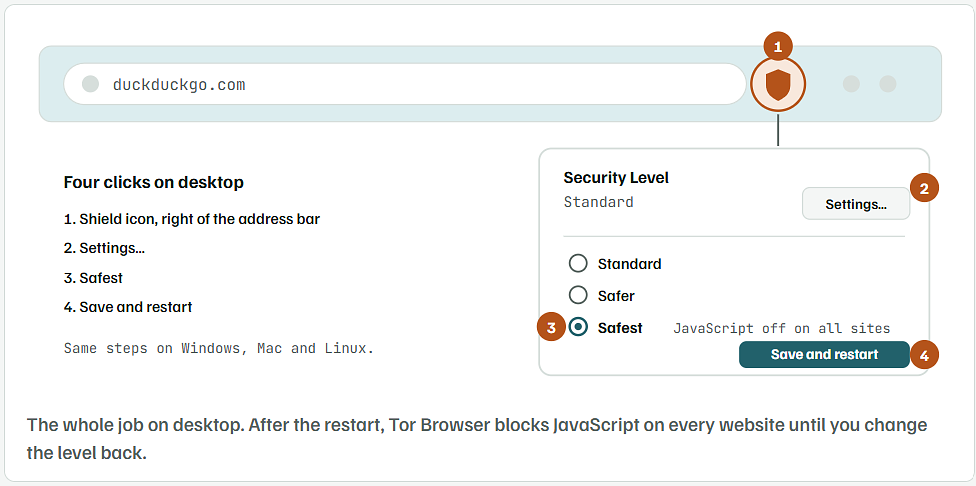
That's the answer for most people. Tor Browser has no plain "JavaScript off" button. Its Safest security level is the switch the Tor Project built for this job, and it blocks JavaScript on all sites. The rest of this guide covers Android, iPhone, how to check it worked, and the one shortcut you should skip.
What Each Tor Security Level Does to JavaScript
Tor Browser has three levels. It starts on Standard.
| Level | JavaScript | Other changes |
|---|---|---|
| Standard | On for every site | All features work. |
| Safer | Off on plain HTTP sites only | Some fonts and math symbols are off. Audio and video become click-to-play. |
| Safest | Off on all sites | Some fonts, icons, math symbols and images are off. Audio and video become click-to-play. |
- Safer is not enough if you want JavaScript off. Almost every site uses HTTPS now, so Safer leaves JavaScript running nearly everywhere.
- Since Tor Browser 15.0 (October 2025), WebAssembly is also blocked at Safer and Safest. WebAssembly is fast compiled code that websites can run in the browser.
Turn Off JavaScript in Tor Browser on Windows, Mac and Linux
- Open Tor Browser and connect as usual.
- Click the shield icon to the right of the address bar.
- Click Settings…
- Select Safest.
- Click Save and restart. Tor Browser closes and opens again with the new level.
No shield icon? Open the menu (three lines, top right) → Settings → Privacy & Security. Scroll to Security Level and pick Safest there.
Turn Off JavaScript in Tor Browser on Android
- Open Tor Browser for Android.
- Tap the three-dot menu.
- Go to Settings → Privacy and security.
- Tap Security Level.
- Select Safest.
- Tap Save and restart.
On iPhone, Onion Browser Uses Gold Instead of Safest
There is no Tor Browser for iPhone. Onion Browser is the app most people use, and it names its levels Bronze, Silver and Gold. Silver is the default. Gold is the strictest level and is closest to Tor Browser’s Safest.
- Open Onion Browser’s settings.
- Find Default Security and set it to Gold.
- For one site only, tap the security toggle next to the address bar instead.
- To check it worked, open a site whose menu or search box needs JavaScript. If that feature stops working at Gold, scripts are blocked.
- Onion Browser runs on Apple’s Safari engine because iOS requires it. It cannot copy every Tor Browser protection.
- In a Privacy Guides review, a site-specific Gold setting did not always carry over to other domains. A per-site choice can also override the default you set.
Check That JavaScript Is Really Off
Don’t take the setting on trust. This tiny page tells you plainly whether scripts can run.
- Open a plain text editor such as Notepad or TextEdit.
- Paste this and save it as
js-test.html:
<!doctype html>
<meta charset="utf-8">
<title>JavaScript test</title>
<h1 id="result" style="font-family:sans-serif;color:green">JavaScript is OFF</h1>
<script>
  const r = document.getElementById('result');
  r.textContent = 'JavaScript is ON';
  r.style.color = 'red';
</script>
- In Tor Browser, press Ctrl + O (Windows and Linux) or Cmd + O (Mac) and open the file.
- Read the heading:
- Green “JavaScript is OFF” means the script was blocked.
- Red “JavaScript is ON” means it ran. Go back and check that Safest is selected and the browser restarted.
Allow JavaScript on One Site Without Turning It Back On Everywhere
Some sites refuse to work without scripts. You can let one site run JavaScript and keep Safest for everything else. Tor Browser does this through NoScript, an add-on it already includes. Its button is hidden by default.
- Show the NoScript button. Right-click the toolbar → Customize Toolbar… → drag the NoScript icon onto the toolbar → Done.
- Open the site that needs JavaScript.
- Click the NoScript button.
- Set that site to Temp. TRUSTED (temporarily trusted). The permission ends when you close Tor Browser.
Every site you trust can run scripts against you again. Keep the list short, and prefer the temporary option over permanent trust.
Why the about:config JavaScript Switch Is the Wrong Way
Many guides tell you to type about:config and set javascript.enabled to false. It does stop JavaScript. It also undoes part of what Tor Browser is built to do.

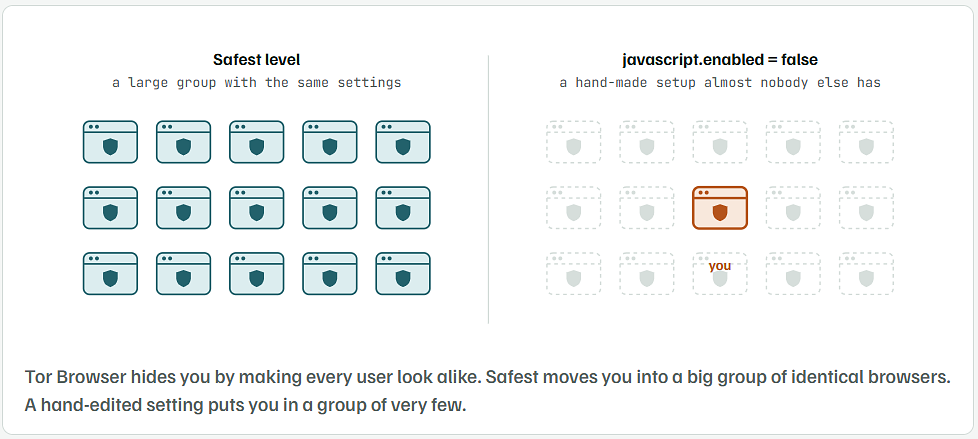
- It makes you easier to pick out. The Tor Project’s own support page warns that a Tor Browser with a unique fingerprint can be tracked. A fingerprint is the set of small details a site can read about your browser. Tor Browser is built so every copy looks nearly identical. Safest is a setting many Tor users share. A hand-changed preference is not.
- It blocks less than Safest. The single preference only covers JavaScript. Safest also limits fonts, media, WebAssembly and other features attackers use.
- It is easy to forget. The security level shows on the shield icon. A buried preference doesn’t, so you can lose track of what you changed.
If you already flipped it, open about:config, search javascript.enabled, click the reset arrow, and use Safest instead.
What Stops Working When JavaScript Is Off
- Logins and sign-up forms on many sites
- Drop-down menus, image galleries and pop-ups
- CAPTCHAs and “verify you are human” checks
- Webmail, chat and most video players
- Forums built on modern software. Even the Tor Project’s own forum is close to unusable at Safest, according to users there.
Plain news pages, wikis, search results and many onion sites still load fine. If a site you trust needs scripts, use the temporary trust steps above for that site.