
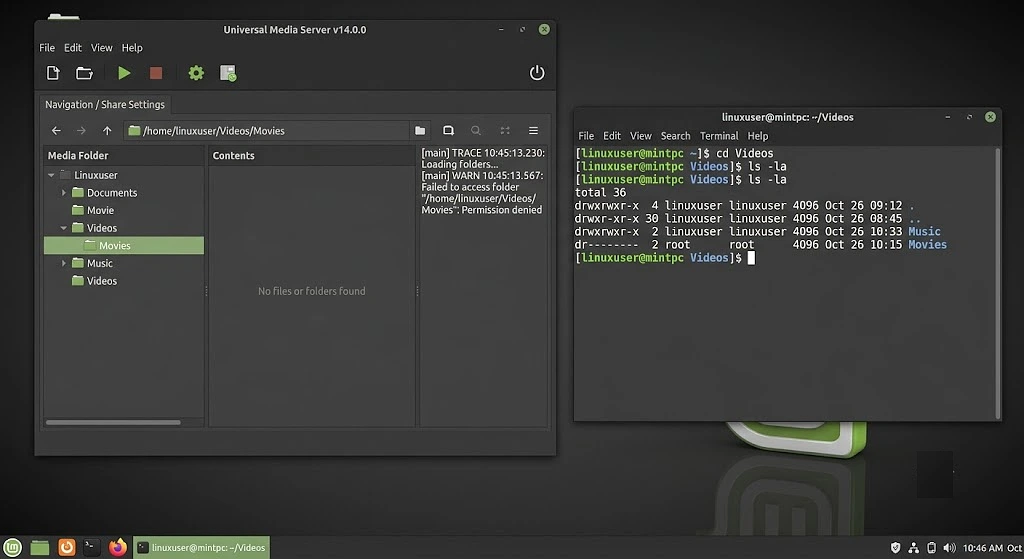
You installed Universal Media Server on Linux Mint. Opened it. Pointed it at your Videos folder. And the moment you tried to stream anything to your TV or phone, it failed. The UMS log showed Permission denied. Or your media folders showed up empty in the renderer. Or UMS itself wouldn’t even launch its tray icon because something about /tmp or /var/log wasn’t writable.
This is one of the most frustrating bugs for new UMS users on Linux Mint, and it’s almost never about UMS being broken. It’s about Linux file permissions, the user account UMS is running under, and a few specific Mint quirks around how the default user sits in groups. Our Linux team at Programmatic LLC sees this come through Aqib’s intake more than any other UMS issue. Different versions of Mint, different UMS versions, same root cause permissions.
First, Find Out What User UMS Is Actually Running As
Before you change a single permission, you need to know what user UMS is running under. Because if you go and chmod 777 everything (please don’t), you’re solving a problem you haven’t diagnosed.
Open a terminal and check:
bash
ps aux | grep -i "ums\|universalmedia"The first column of the output is the username. If you installed UMS via the .deb package or the tarball and launched it from your menu, it’s running as your user. If you set it up as a systemd service, it might be running as root, or as a dedicated ums user, or as nobody depending on how the service file was written.
This matters because the rest of this article is about what that specific user can and can’t access. Write down the username. We’ll come back to it.
Check What Permissions Your Media Folder Actually Has
Here’s where most people go wrong. They assume because they can open the folder in Nemo (Mint’s file manager) and play videos in VLC, UMS should be able to read it too. But UMS might be running as a different user than the one you’re logged in as.
Go to your media folder and run:
bash
ls -la /home/yourname/VideosYou’ll see something like:
drwxr-xr-x  3 yourname yourname  4096 Apr 12 14:22 .
drwxr-xr-x 22 yourname yourname  4096 May  3 09:11 ..
-rw-r--r--  1 yourname yourname 1.2G Mar 15 21:43 movie.mkv
-rw-------  1 yourname yourname 800M Apr 02 17:55 private-video.mp4
Look at the permission column on the left. The -rw------- on private-video.mp4 means only the owner can read it. If UMS isn’t running as yourname, it can’t read that file. That’s your permission denied.
The -rw-r--r-- on movie.mkv is fine — owner can read/write, group can read, everyone else can read. UMS can access this one regardless of what user it runs as.
The folder itself needs x (execute) permission for whoever’s reading it. Without x, a user can’t even enter the directory to see what’s inside. This is the subtle one that confuses people. You can read files but not list directories without x. Or list directories but not read files without r. Both have to be there.
The Linux permissions documentation in the Mint user guide covers the basics if you need to brush up. But for our purposes, here’s what matters: you need UMS’s user to have at least r on the files and rx on the folders.
Add the UMS User to Your User’s Group
This is the cleanest fix if UMS is running as a different user. Don’t change file permissions on every video file you own — instead, put the UMS user in your group so it inherits read access.
Check what groups your user is in:
bash
groups yournameYou’ll see something like:
yourname : yourname adm cdrom sudo dip plugdev lpadmin sambashareThe first one (yourname) is your primary group every file you create is owned by it by default. If UMS is running as a user called ums, add ums to your primary group:
bash
sudo usermod -aG yourname umsThe -a is critical. Without it, usermod replaces all the user’s existing groups instead of adding to them. People forget this and accidentally lock the UMS user out of /var/log and other system directories. Don’t skip the -a.
After running this, restart UMS. Group membership doesn’t take effect until the user re-logs in or the process restarts.
If UMS Is Running as Your Own User and It Still Fails
Then it’s almost certainly one of these three:
The Folder Path Has a Space or Special Character
UMS handles spaces in paths most of the time, but if you have something like /home/yourname/My Videos & Stuff/, that ampersand will break things. Same with paths containing parentheses, brackets, or non-ASCII characters. Move or rename the folder to something simple:
bash
mv "/home/yourname/My Videos & Stuff" "/home/yourname/Media"Then update UMS’s shared folder list to point to the new path.
Your Media Is on an External Drive or NTFS Partition
This bites people constantly. External drives mount with permissions controlled by the filesystem and mount options, not by chmod. If your videos are on an NTFS drive (a Windows drive you plugged in), the default mount uses your user but doesn’t grant the right permissions to other users or services.
Check how the drive is mounted:
bash
mount | grep -i "ntfs\|exfat\|fuseblk"You’ll see the mount options. If you don’t see umask=000 or uid= and gid= flags that include your UMS user, that’s your problem.
To fix it permanently, edit /etc/fstab and add explicit mount options. For an NTFS drive:
UUID=xxxx-xxxx /mnt/media ntfs-3g defaults,uid=1000,gid=1000,umask=022 0 0Replace 1000 with your user’s UID (run id to find it). The Linux Mint forums have detailed fstab guides for the various filesystem types if your setup is unusual.
SELinux or AppArmor Is Blocking It
Linux Mint doesn’t ship with SELinux enabled by default, so this is rare. But if you’ve installed something that turned on AppArmor profiles for UMS, or if you copied a profile from a guide somewhere, it can silently block file access even when permissions look perfect.
Check AppArmor status:
bash
sudo aa-status | grep -i umsIf UMS is listed under “profiles in enforce mode” and you’re getting permission denied despite correct file perms, AppArmor is your culprit. Either disable the profile temporarily to confirm:
bash
sudo aa-disable /etc/apparmor.d/usr.bin.umsOr fix the profile to allow your media paths. The Ubuntu AppArmor docs apply to Mint as well since Mint is built on the same base.
The /tmp and /var/log Permission Denial
Sometimes UMS itself won’t even start, and the error message mentions /tmp or /var/log/ums or a similar system path. This happens when UMS is configured to run as a non-root user but tries to write logs or cache files to a directory that user doesn’t own.
Fix by giving the UMS user explicit ownership of its own log and cache directories:
bash
sudo mkdir -p /var/log/ums
sudo chown -R ums:ums /var/log/ums
sudo chmod 755 /var/log/ums
Replace ums:ums with whatever user UMS runs as. If it’s your own user, that’s yourname:yourname.
For UMS’s cache and database files, the default location is ~/.config/UMS/ in your home directory. If you’ve moved this or symlinked it to a path the UMS user can’t write to, the app will fail at startup. Check with:
bash
ls -la ~/.config/UMS/The owner should be the same user UMS runs as. If it’s not, fix it:
bash
sudo chown -R yourname:yourname ~/.config/UMS/The Renderer Sees UMS But Sees No Files
This is a different symptom of the same problem and worth calling out separately because the diagnostic is different.
You open your TV’s media app, you see “Universal Media Server” in the renderer list, you connect and the folders are empty. Not “Permission denied” exactly, just empty. Or you see the folder names but no files inside them.
Nine times out of ten, this means UMS read the folder structure successfully but couldn’t read the individual files inside. The permissions on the folder are good enough for UMS to list contents, but the permissions on the files inside are restricted.
Quick check:
bash
find /home/yourname/Videos -type f ! -perm -u+r,g+r 2>/dev/nullThis lists any file in your Videos folder that isn’t readable by both owner and group. If anything shows up, those are the files UMS is skipping.
Fix everything in one shot:
bash
find /home/yourname/Videos -type f -exec chmod 644 {} \;
find /home/yourname/Videos -type d -exec chmod 755 {} \;
The first command sets all files to rw-r--r-- (owner read/write, others read). The second sets all directories to rwxr-xr-x (owner full access, others can enter and list). This is the standard permission set for shared media on Linux and it’s what UMS expects.