


If you have ever tried to compile software from source on Linux, you may have encountered this frustrating error:
configure: error: no acceptable C compiler found in $PATHIt usually shows up the moment you run ./configure, and it stops the build dead in its tracks. The good news is that this error is almost always easy to fix once you understand what’s actually happening.
Quick Fix (TL;DR)

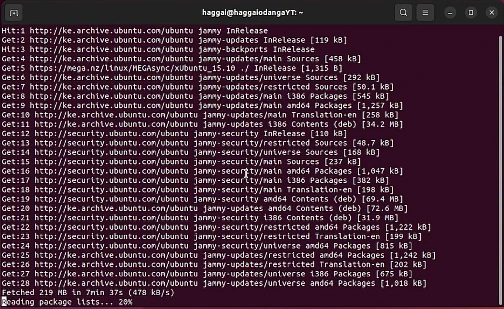
In a hurry? Run the command for your distribution and the error will almost certainly disappear:
# Debian, Ubuntu, Linux Mint, Pop!_OS
sudo apt update && sudo apt install build-essential

# Fedora, RHEL, CentOS, Rocky, AlmaLinux
sudo dnf groupinstall "Development Tools"

# Arch Linux, Manjaro, EndeavourOS
sudo pacman -S base-devel

# openSUSE
sudo zypper install -t pattern devel_basis

# Alpine Linux
sudo apk add build-base
Then verify it worked:
gcc --versionIf you see a version number, re-run ./configure and the build will continue. If it still fails, keep reading the rest of this guide covers every edge case.
What This Error
When you run ./configure, a script (usually generated by GNU Autotools) inspects your system to make sure everything needed to build the software is available. One of the very first things it checks is whether a working C compiler exists somewhere in your $PATH the list of directories your shell searches when you type a command.
If no compiler is found, the configure script aborts with the “no acceptable C compiler” message. There are really only three possible causes:
- No C compiler is installed on the system at all.
- A compiler is installed but isn’t in
$PATH, so the script can’t find it. - The compiler is broken or misconfigured for example, it’s a stub, a wrapper that’s missing its backend, or a cross-compiler that can’t produce binaries for the current machine.
The vast majority of the time, it’s the first case. Many minimal Linux installations especially server images, Docker containers, and lightweight desktop distributions ship without a compiler by default to keep the install size small.
The Quick Fix Install a C Compiler

The fastest path to a solution is to install your distribution’s standard development toolchain. This installs not just gcc, but also make, the C standard library headers, and a handful of supporting tools you’ll almost certainly need anyway.
Debian, Ubuntu, Linux Mint, Pop!_OS

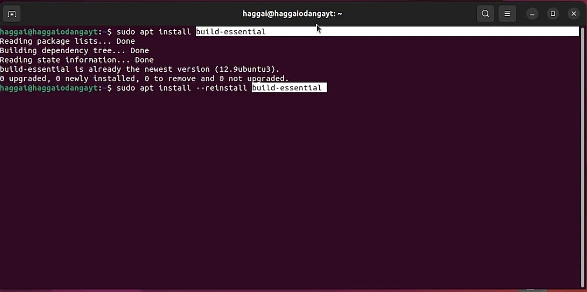
sudo apt update
sudo apt install build-essential
The build-essential meta-package pulls in gcc, g++, make, libc6-dev, and dpkg-dev. This is the right choice 99% of the time on any Debian-based system.
Fedora, RHEL, CentOS Stream, Rocky Linux, AlmaLinux
sudo dnf groupinstall "Development Tools"On older systems still using yum:
sudo yum groupinstall "Development Tools"This group includes gcc, make, autoconf, automake, binutils, and other common build utilities. You may also want the kernel-headers and glibc-devel packages if you’re compiling something that touches system internals.
Arch Linux, Manjaro, EndeavourOS
sudo pacman -S base-develWhen prompted to choose packages from the group, just press Enter to install all of them. base-devel is essentially required for building anything from source on Arch including AUR packages so it’s worth installing even outside the context of this error.
openSUSE (Leap and Tumbleweed)
sudo zypper install -t pattern devel_basisFor a more comprehensive set of tools, you can install the devel_C_C++ pattern instead.
Alpine Linux
Alpine is minimalist by design, and its package is named differently:
sudo apk add build-baseThis installs gcc, g++, make, libc-dev, and a few other essentials. Alpine uses musl libc instead of glibc, which is worth knowing if you’re compiling code that has glibc-specific assumptions.
Void Linux
sudo xbps-install -S base-develGentoo
Gentoo systems normally have GCC installed by default since the system itself is built from source. If you’re somehow missing it:
sudo emerge --ask sys-devel/gccVerify the Installation Work
After installing, confirm that the compiler is reachable:
gcc --sversionYou should see output similar to:
gcc (Ubuntu 11.4.0-1ubuntu1~22.04) 11.4.0
Copyright (C) 2021 Free Software Foundation, Inc.
You can also check exactly where the binary lives:
which gccMost distributions place it at /usr/bin/gcc. If both commands return useful output, you’re done re-run ./configure and the build should proceed.
When GCC Is Install but Still Not Found
This is the trickier scenario, and it usually means one of three things is going wrong.
Problem 1: GCC Isn’t in Your $PATH
Inspect your current $PATH:
echo $PATHA typical $PATH includes /usr/bin and /usr/local/bin. If yours is missing one of these perhaps because a custom shell config overwrote it that’s your problem.
Find where gcc actually lives:
ls /usr/bin/gcc* /usr/local/bin/gcc* 2>/dev/nullThen add the missing directory to your shell config. For Bash, edit ~/.bashrc:
export PATH="$PATH:/usr/bin"For Zsh, edit ~/.zshrc instead. Reload the config:
source ~/.bashrcThis is especially common when running inside sudo on systems where secure_path is set in /etc/sudoers the root $PATH may not match your user’s $PATH.
Problem 2: Only a Versioned Binary Exists

Sometimes a system has gcc-13 or gcc-11 installed but no plain gcc symlink. The configure script looks for gcc by default, so it fails to find the versioned binary.
You have two options. The cleaner one is to tell configure which compiler to use:
CC=gcc-13 ./configure
The other option is to create a symlink:
sudo ln -s /usr/bin/gcc-13 /usr/bin/gcc
On Debian-based systems, update-alternatives is the proper way to manage multiple GCC versions:
sudo update-alternatives --install /usr/bin/gcc gcc /usr/bin/gcc-13 100
Problem 3: The Compiler Can’t Actually Compile Anything
This is the most confusing case. gcc --version works, but ./configure still fails. To diagnose, look at config.log the configure script writes a detailed log of every check it ran, and the real error is always in there.
tail -50 config.log
You’re looking for something like “cannot find crt1.o” or “fatal error: stdio.h: No such file or directory”. Both indicate the same thing: GCC is installed, but the C standard library development headers are not.
Fix it by installing the libc development package:
# Debian/Ubuntu
sudo apt install libc6-dev

# Fedora
sudo dnf install glibc-devel

# Arch
sudo pacman -S glibc

# Alpine
sudo apk add musl-dev linux-headers
Alternative: Use Clang Instead
If for some reason you can’t or don’t want to install GCC perhaps you’re working in a constrained environment or have a preference Clang is a fully compatible alternative. Most software that builds with GCC builds identically with Clang.
Install it:
# Debian/Ubuntu
sudo apt install clang

# Fedora
sudo dnf install clang

# Arch
sudo pacman -S clang

# Alpine
sudo apk add clang
Then point configure at it:
CC=clang ./configure
make
You can also export CC for the whole shell session:
export CC=clang
./configure