


The “Build Directory is Not Writeable” error in Next.js on EC2 occurs when the Node.js process lacks write permissions to the .next directory. Fix it by running these commands on your EC2 instance:

bash
cd /path/to/your/app
sudo chown -R $USER:$USER .next
chmod -R 755 .next
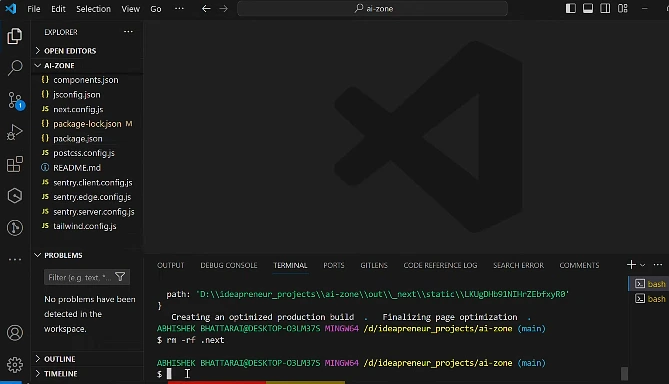
If the issue persists, rebuild the app as the correct user (without sudo):
bash
sudo rm -rf .next
npm run build
That’s it for most cases. Keep reading for a deeper understanding of why this happens and how to prevent it in production deployments.
Understanding the Error
When you deploy a Next.js application on an AWS EC2 instance, Next.js needs to write files to the .next directory during both the build process and runtime. The .next folder stores compiled pages, server bundles, cache files for Incremental Static Regeneration (ISR), and optimized images.
If the user running your Node.js process doesn’t have proper write permissions to this directory, Next.js throws the “Build Directory is Not Writeable” error and your application fails to start or serve requests properly.
Why This Error Happen on EC2
There are several reasons this permission issue commonly appears on EC2 instances:
- Ownership mismatch between build and runtime users. Developers often build the app using
sudoor as therootuser, then run it under a different user likeec2-userorubuntu. This creates files owned by root that other users cannot modify. - Process manager running as wrong user. Tools like PM2 or systemd services may be configured to run under a user that doesn’t own the application files.
- Docker container permissions. When running Next.js inside Docker, the container user may not match the host file ownership, causing write failures.
- Read-only filesystem or mounted volumes. Some EC2 configurations use read-only root volumes or have EBS volumes mounted with restricted permissions.
- Deployment tools overwriting permissions. CI/CD pipelines, rsync, or SCP transfers can sometimes change file ownership during deployment.
Fix Next.js Solutions
Fix Directory Ownership
This is the most common fix. SSH into your EC2 instance and navigate to your project directory:

bash
cd /var/www/your-nextjs-app
sudo chown -R $USER:$USER .
chmod -R 755 .
The $USER variable automatically uses your current username. If you want to specify explicitly:
bash
sudo chown -R ubuntu:ubuntu .    # For Ubuntu AMI
sudo chown -R ec2-user:ec2-user . # For Amazon Linux AMI
Rebuild as the Correct User
If the error persists after fixing permissions, the build artifacts themselves may have incorrect ownership. Remove and rebuild:
bash
sudo rm -rf .next
npm run build
Never use sudo when running npm run build on your production server. Always build as the same user that will run the application.
Configure PM2 Correctly
If you’re using PM2 as your process manager, verify which user it runs under:
bash
pm2 list
ps aux | grep PM2
If PM2 is running as root but your files are owned by ubuntu, stop PM2 and restart it under the correct user:
bash
# Stop PM2 running as root
sudo pm2 kill

# Start PM2 as your deployment user
pm2 start npm --name "nextjs-app" -- start
pm2 save
pm2 startup
Fix Docker Permissions
When running Next.js in Docker on EC2, set proper ownership in your Dockerfile:
dockerfile
FROM node:20-alpine

WORKDIR /app

COPY package*.json ./
RUN npm ci

COPY . .
RUN npm run build

# Create non-root user and set ownership
RUN addgroup -g 1001 -S nodejs && \
    adduser -S nextjs -u 1001 && \
    chown -R nextjs:nodejs /app

USER nextjs

EXPOSE 3000
CMD ["npm", "start"]
Check for Read-Only Filesystem
Verify your filesystem isn’t mounted as read-only:
bash
mount | grep $(df . | tail -1 | awk '{print $1}')If you see ro in the output, remount as read-write:
bash
sudo mount -o remount,rw /For persistent changes, edit /etc/fstab to ensure the volume mounts with write permissions.
Solution 6: Verify Cache Directory Permissions
Next.js writes to .next/cache during runtime for features like ISR and image optimization. Ensure this subdirectory is writeable:
bash
mkdir -p .next/cache
chmod -R u+w .next/cache
Best Practice for Next.js Deployment on EC2
Follow these practices to avoid permission issues entirely in your production deployments.
Set up a dedicated deployment directory with proper ownership from the start:
bash
sudo mkdir -p /var/www/nextjs-app
sudo chown -R ubuntu:ubuntu /var/www/nextjs-app
cd /var/www/nextjs-app
Use a consistent deployment user across your entire pipeline. Whether it’s ubuntu, ec2-user, or a custom deploy user, stick with one for SSH, Git operations, builds, and running the Node process.
Automate deployments with proper permission handling. A simple deployment script can prevent these issues:
bash
#!/bin/bash
set -e

cd /var/www/nextjs-app
git pull origin main
npm ci --production=false
npm run build
pm2 reload nextjs-app
Use environment-specific builds. Consider building your Next.js app in CI/CD (GitHub Actions, AWS CodeBuild) and deploying pre-built artifacts to EC2. This eliminates build-time permission issues on production servers.
Monitor file ownership regularly. Add a health check to your deployment that verifies permissions before starting the app:
bash
if [ ! -w .next ]; then
  echo "ERROR: .next directory not writeable"
  exit 1
fi
Preventing Future Permission Issues
set up your EC2 security to reduce permission issues. Do not run or install production programs as the root user. Add a special deployment user with the relevant sudo access but not at the system level. Prefer AWS Systems Manager Session Manager over SSH using root credentials to have a better audit trail.
In the case of teams, infrastructure-as-code tools such as Terraform or AWS Cloud Formation can be considered to standardize EC2 configurations and have a consistent user and permission setup across environments.