


Before diving in, here’s what you need to know upfront:
- Conda does not accept platform suffixes in version strings like
python=3.9.11-macos11this syntax will always fail. - On Apple Silicon (M1/M2) Macs, Conda can silently install x86_64 Python even on an arm64 host due to Rosetta 2 compatibility no error, no warning.
- The fix is a single environment variable:
CONDA_SUBDIR=osx-arm64set before creating the environment. - Always verify architecture right after activation using
platform.machine(). - Pinning
subdirinside the environment ensures all futureconda installcalls also stay native arm64.

The Problem
You are on an M1 Mac. You installed Miniconda using the arm64 installer (Miniconda3-latest-MacOSX-arm64.sh). Your base Python confirms the right architecture:
bash
$ python3 -c "import os; print(os.uname().machine)"
arm64
But the moment you create a new Conda environment and activate it, something goes wrong silently:
bash
$ conda create -n test python=3.9
$ conda activate test
$ python3 -c "import os; print(os.uname().machine)"
x86_64
Your environment is running x86_64 Python under Rosetta 2 translation not native arm64. Performance is degraded, native libraries may misbehave, and packages that need arm64 builds will either fail or run incorrectly.
You might try to fix this by specifying the platform in the version string:
bash
conda create -n test python=3.9.11-macos11This fails with a PackagesNotFoundError. Conda does not understand platform tags in version strings that is not how it resolves platform-specific packages.
Root Cause Why This Happen
Conda uses an internal concept called subdir (subdirectory) to determine which platform’s package index to query. Common values are:
osx-arm64Apple Silicon native.osx-64macOS Intel / Rosetta.linux-64Linux x86_64.linux-aarch64Linux ARM64.
When you install Miniconda with the arm64 installer, the base environment is correctly set to osx-arm64. However, when you run conda create to make a new environment, Conda does not always inherit or enforce this constraint strictly. If the default Anaconda channel has an x86_64 build that satisfies your Python version requirement, Conda may resolve and install it because Rosetta 2 allows x86_64 binaries to run on Apple Silicon without any crash or visible error.
This is a known silent gotcha on M1/M2 machines. There is no warning. The environment activates fine, Python runs fine on the surface, but the architecture is wrong.
Error Breakdown
Invalid version syntax:
bash
conda create -n test python=3.9.11-macos11PackagesNotFoundError: The following packages are not available from current channels:
- python=3.9.11-macos11
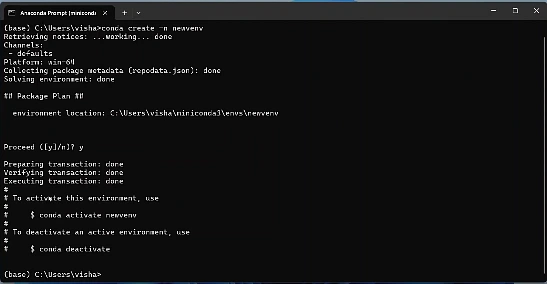
Conda’s package resolver uses the format name=version=build_string (with two equals signs for build strings), not platform tags appended to the version. The string 3.9.11-macos11 is not a valid version in Conda’s resolver. Conda has no mechanism to accept Python.org download filenames or .pkg/.tgz paths as a version specifier.
Silent wrong architecture (no error thrown)
bash
$ conda activate test
$ python3 -c "import os; print(os.uname().machine)"
x86_64
Conda resolved an x86_64 build of Python 3.9 from the channel index. Rosetta 2 translated it transparently. The environment works, but you are not on native arm64. This causes performance loss and potential incompatibility with packages that have arm64-native wheels or C extensions.
The Fix Problem Method
Set CONDA_SUBDIR before creating the environment
Export the variable in your current shell session. This tells Conda’s resolver to only look at packages built for osx-arm64.
bash
export CONDA_SUBDIR=osx-arm64This scopes to the current terminal session only it does not permanently change any Conda config.
Create the Environment with Your Target Python Version
Now use the normal version syntax. No platform suffix is needed or accepted.
bash
conda create -n test python=3.9.11

Conda will now query only the osx-arm64 slice of the channel index and resolve a native arm64 build of Python 3.9.11.
Activate and Pin the Subdir Inside the Environment (Recommended)
After activating, pin the subdir setting so that all future conda install commands within this environment also resolve arm64 packages not just the initial create.
bash
conda activate test
conda config --env --set subdir osx-arm64

This writes the setting into the environment's .condarc file, scoped only to this environment.
Verify the Architecture
Run this immediately after activation to confirm you are on native arm64:
bash
# Primary check
python -c "import platform; print(platform.machine())"

# Alternative check
python -c "import os; print(os.uname().machine)"
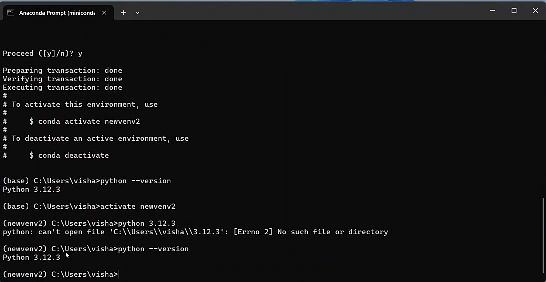
Both should now return arm64. If either returns x86_64, the subdir was not applied correctly recheck Step 1 and Step 2.
Alternate Approach Use the Conda-forge Channel
The default Anaconda channel sometimes has limited arm64 coverage for older Python patch versions. If python=3.9.11 is not found on osx-arm64, try conda-forge, which has broader arm64 build coverage:
bash
CONDA_SUBDIR=osx-arm64 conda create -n test -c conda-forge python=3.9.11You can also inline CONDA_SUBDIR directly in the command without a separate export step, as shown above.
Can You Use a Local .pkg or .tgz File
Short answer: no, not via conda create. Conda is not designed to install Python from a .pkg installer or a .tgz archive downloaded from Python.org. The python=file://... and FTP URL syntax are not supported by the package resolver.
If you need a Python version that is genuinely unavailable in any Conda channel, the correct approach is to install it separately via pyenv (which does support arm64 builds natively) and then point a virtual environment at it. However, for Python 3.9.11 on arm64, the conda-forge channel should cover you without needing that workaround.
| Check | Before Fix | After Fix |
|---|---|---|
os.uname().machine | x86_64 | arm64 |
platform.machine() | x86_64 | arm64 |
| Architecture | Rosetta 2 translation | Native Apple Silicon |
| Performance | Degraded | Full native speed |
| Native C extensions | May fail or misbehave | Work correctly |
Complete Fix Copy Paste Reference
bash
# Step 1: set subdir for this shell session
export CONDA_SUBDIR=osx-arm64

# Step 2: create the environment with the target Python version
conda create -n test python=3.9.11

# Step 3: activate and pin the subdir inside the environment
conda activate test
conda config --env --set subdir osx-arm64

# Step 4: verify should print arm64
python -c "import platform; print(platform.machine())"
The root issue is that Conda on Apple Silicon does not automatically guarantee arm64 package resolution for new environments. The platform-tag syntax (python=3.9.11-macos11) is not valid and will always error. The correct solution is to control the CONDA_SUBDIR environment variable before creating the environment, and optionally pin it inside the environment for persistent arm64 resolution. A quick architecture check after activation is always worth doing to confirm you are running native Python.